


How to Extract Backing Vocals From a Song
Backing vocals are easy to hear but hard to isolate. In a finished mix, they sit beneath the lead, layered with reverb, blended into the arrangement, and no standard tool can pull them out without taking half the track with them. Most vocal removers don’t even try: they treat all vocals as one thing and strip them together.
LALAL.AI Lead & Back Vocal Splitter treats lead and backing vocals as separate stems, so you can extract the backing layer on its own, without touching the lead or the instrumental.
What the Splitter Actually Separates
Before uploading, it helps to know what each output stem actually contains.
- Back Vocal contains harmonies, doubles, ad-libs, and any background vocal layers that sit behind the lead.
- Lead Vocal carries the primary vocal line, typically the main artist or featured singer.
- Instrumental keeps the full arrangement minus any vocals. Also available as a combined Back Vocal + Instrumental stem.
Separation quality depends on how clearly the lead and backing vocals are differentiated in the mix. Songs where the backing parts sit distinctly behind a single lead tend to split cleanest. Tracks with multiple vocalists at equal levels, or with heavy layering that blurs the line between lead and harmony, will produce less precise results.
How to Isolate Backing Vocals: Step by Step
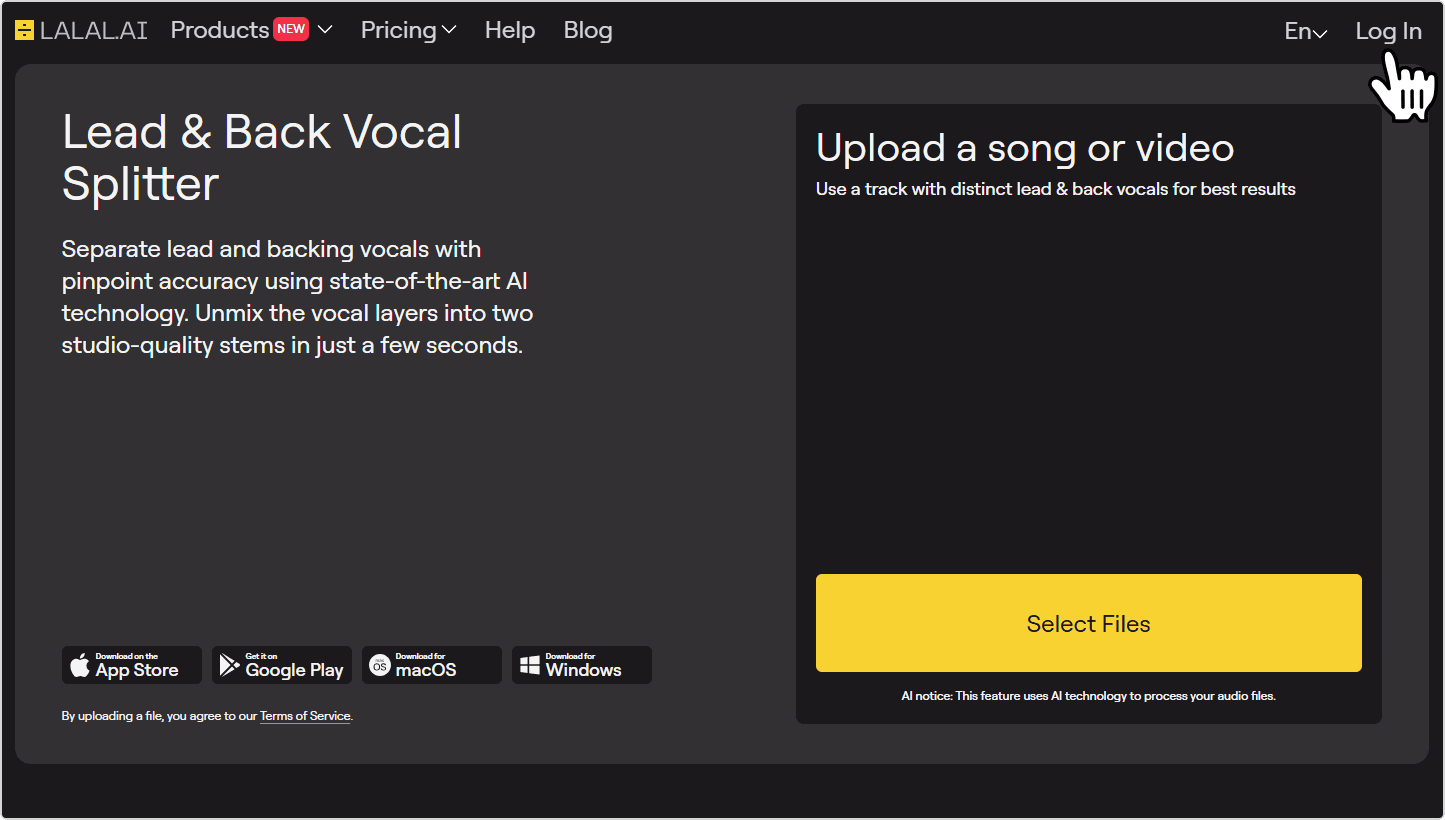
- Open the splitter and sign in. Go to the LALAL.AI Lead & Back Vocal Splitter page. Log in or create an account if you don’t have one yet.
![LALAL.AI Lead & Back Vocal Splitter page]()
- Upload your audio or video file. Click Select Files to upload your track, or drag and drop it directly into the upload area. The splitter accepts most common audio formats (MP3, WAV, FLAC, AIFF, OGG, AAC, M4A) and video formats (MP4, MKV, MOV, AVI).
![Upload an audio or video file to the splitter]()
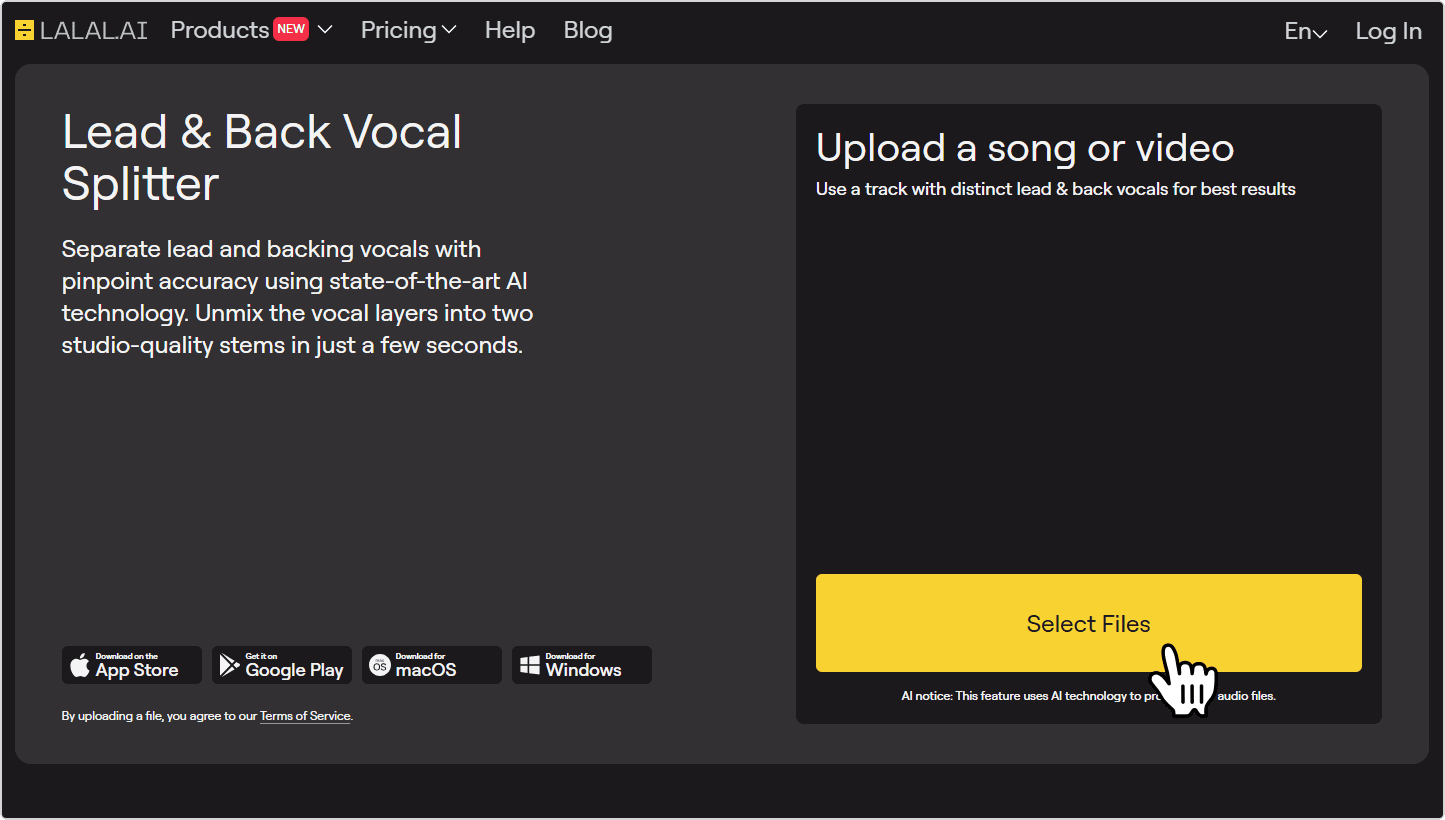
File quality matters. A lossless WAV or FLAC will produce cleaner stems than a compressed MP3. If you have a higher-quality version of the file, use it instead.
- Check the preview. LALAL.AI automatically processes the first 60 seconds of the track as a preview. Play back the Back Vocal stem to assess how cleanly the harmonies and backing layers have been separated before committing to the full file.
![Lead Vocal, Back Vocal and Instrumental previews]()
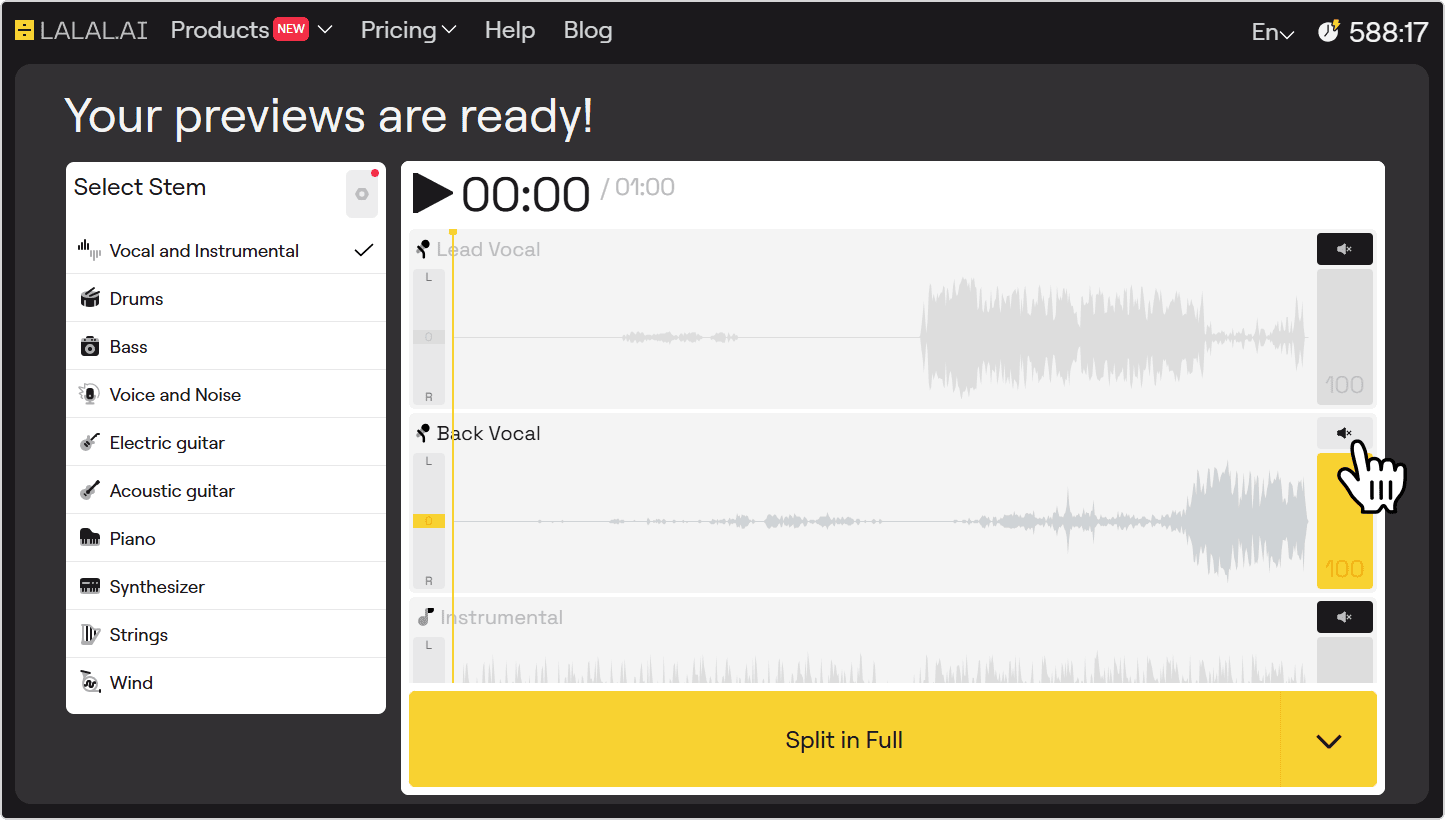
If the preview sounds off, click the settings icon in the top-right corner of the stem selector and try enabling the De-Echo toggle, which removes echo and reverb from the source audio. You can also re-upload a higher-quality version of the file for cleaner results.
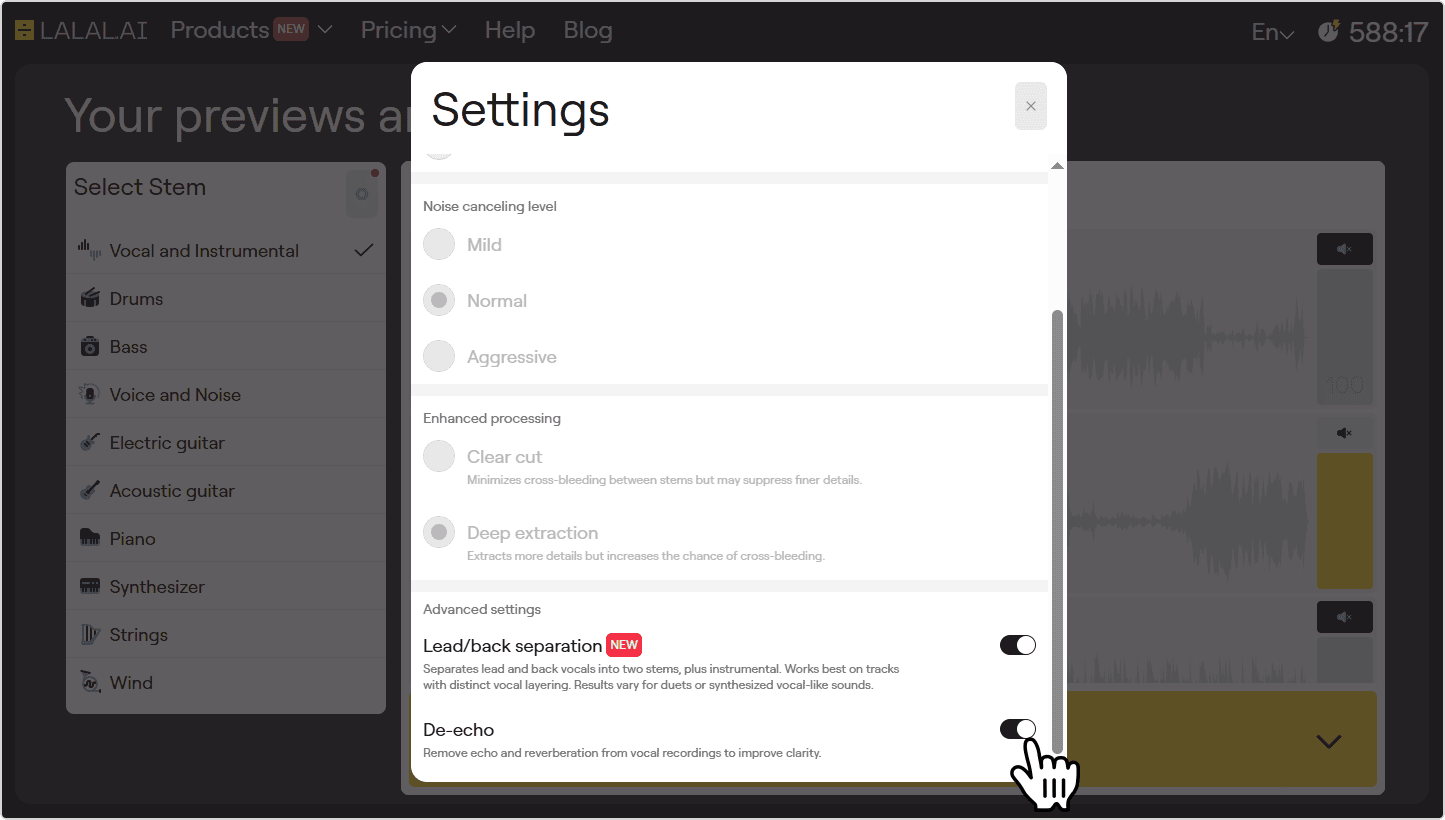
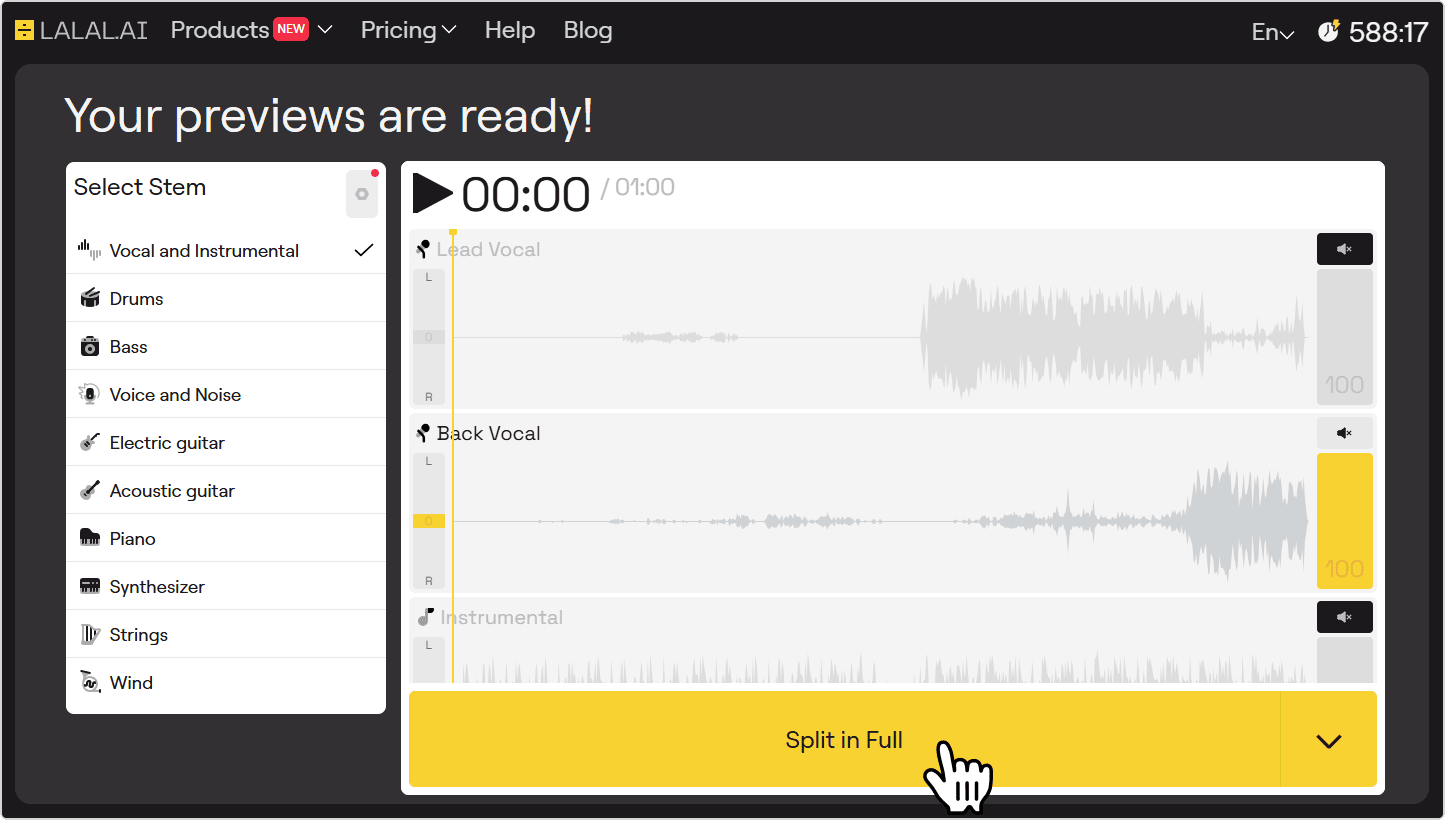
- Process the full file. If the preview sounds good, click the Split in Full button to process the complete file.
![Split in Full button]()
- Download the stem. Four stems are available to download once processing finishes: Lead Vocal, Back Vocal, Instrumental, and Back Vocal + Instrumental. Click Download next to the Back Vocal stem.
![Download button next to the Back Vocal stem]()
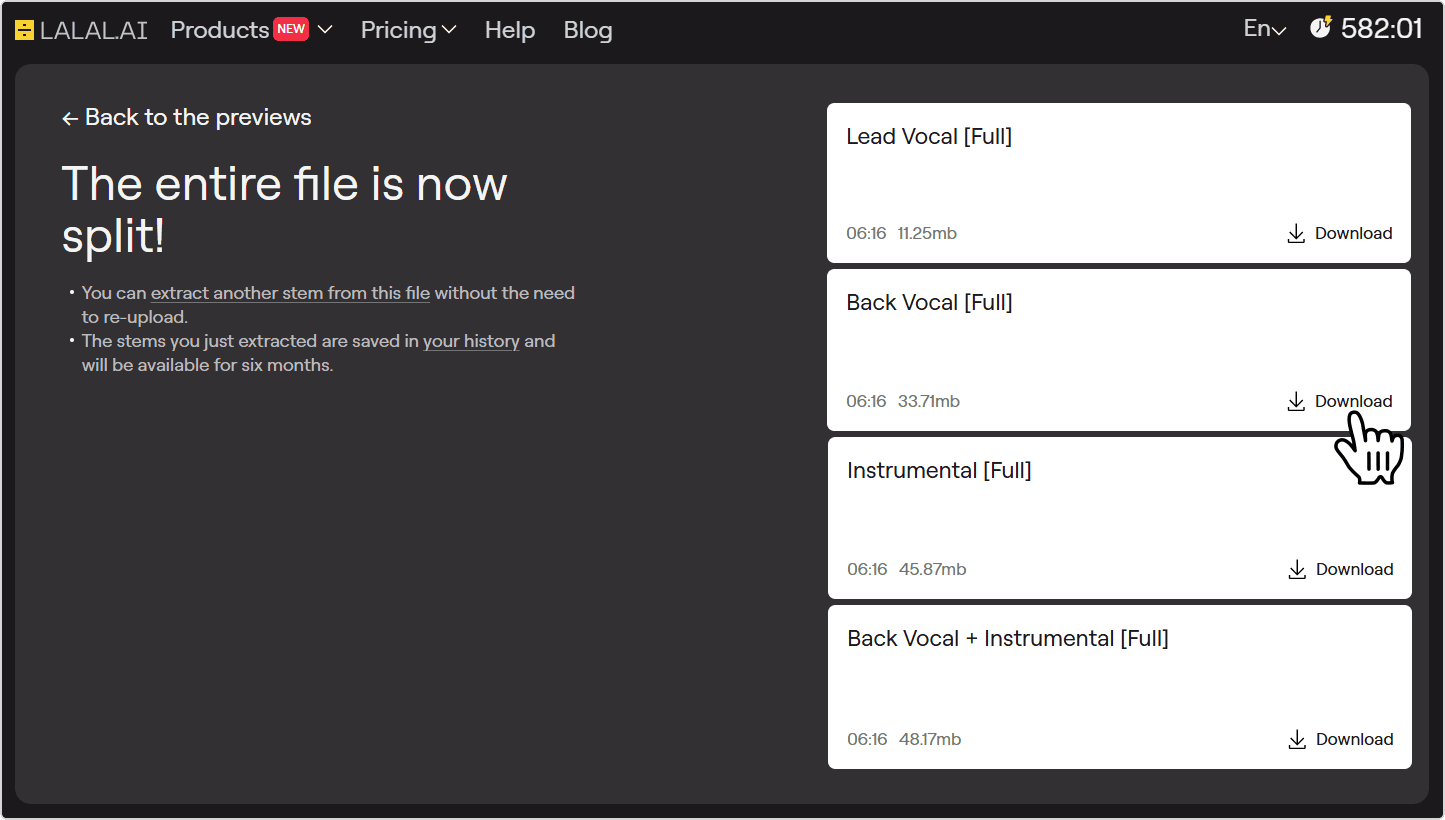
The Back Vocal + Instrumental combined stem only becomes available after the full file is processed, not at the preview stage.
Tips for Getting the Best Results
- Start with the best source file available. Encoding artifacts in compressed formats like MP3 or AAC can bleed into the stems and reduce separation quality. WAV or FLAC gives it more accurate material to work from.
- Use the preview to assess quality before processing. The 60-second preview is the fastest way to know whether the separation is going to work well on a specific track. A clean preview almost always means a clean full split.
- Listen through headphones before committing. Low-level bleed from the lead vocal or the mix can be hard to catch on built-in speakers. Headphones at full volume make it clear if the backing stem is clean enough to use, or if a re-upload is worth trying first.
- Try a higher-quality source if the preview is underwhelming. Separation results can shift considerably between a 128kbps MP3 and a lossless version of the same file. It’s the simplest fix to try before adjusting anything else.
- Enable De-Echo on reverb-heavy recordings. Backing vocals are often drenched in reverb, which makes them harder for the splitter to separate cleanly. The De-Echo toggle in settings strips reverb from the source before splitting, which can produce noticeably tighter stems on the right material.
- Polish the stem after processing. Even a well-separated Back Vocal stem may carry traces of the lead or the mix. LALAL.AI Voice Cleaner can reduce residual noise without leaving the platform, or you can import the stem into a DAW for more targeted EQ and cleanup.
자주 묻는 질문
What counts as a backing vocal?
Anything that supports rather than carries the main melody: harmonies, doubles, ad-libs, call-and-response parts, and choral layers. If it sits behind the lead vocal in the arrangement, it ends up in the Back Vocal stem.
What if a song has no backing vocals?
The Back Vocal stem will be empty, or close to it. The Lead Vocal and Instrumental stems will still be available and unaffected.
What format are the output files?
By default, the output matches the format of the uploaded file. Before clicking Split in Full, you can click the arrow next to the button to choose a different format. Supported output formats are MP3, OGG, AAC, AIFF, WAV, and FLAC.
Can I process video files?
Yes, you can upload and process video files in MP4, MKV, MOV, and AVI. The audio is extracted automatically and processed the same way as any audio upload. Useful for pulling vocals from live performances or music videos.
Why does the backing vocal stem still have some lead vocal in it?
Some bleed between stems is expected, particularly on tracks where the lead and backing vocals share the same frequency space or are heavily blended in the mix. A higher-quality source file, the De-Echo setting, or light post-processing in a DAW can all bring it down.
Can I use the extracted stem in my own music or videos?
Extracting a stem doesn’t transfer any rights to it. Using backing vocals from a commercially released song in your own work requires a license or permission from the rights holder.
