


How to Create a Backing Track (Instruments + Background Vocals)
A plain instrumental works for some performances, but plenty of songs lose something important without the harmonies underneath. Singers covering a duet, choir directors prepping rehearsal material, or solo performers playing a song live still want that vocal texture in the mix, just without the original lead vocal recording in the way of their own performance.
LALAL.AI Lead & Back Vocal Splitter outputs a combined Back Vocal + Instrumental stem built exactly for this. It keeps the full instrumentation and the backing harmonies together while removing only the lead, creating a ready-to-use backing track in one download.
What Goes Into the Backing Track
The splitter generates four stems from a single upload, and the backing track comes from one specific combination of them.
- Back Vocal + Instrumental merges every instrument in the mix with the backing harmonies, doubles, and ad-libs, leaving the lead vocal out entirely. This is the stem to download for a backing track.
- Lead Vocal and Back Vocal are also available on their own, useful if you only need the main vocal isolated or the harmonies by themselves.
- Instrumental strips out all vocals, lead and backing alike, for a fully bare arrangement.
How well this works depends on how the original track was arranged. Songs with a clear lead vocal and distinct backing harmonies split cleanly. Tracks where multiple voices sing at near-equal volume, with no obvious lead, may blur the line between what counts as lead and what counts as backing.
How to Create the Backing Track: Step by Step
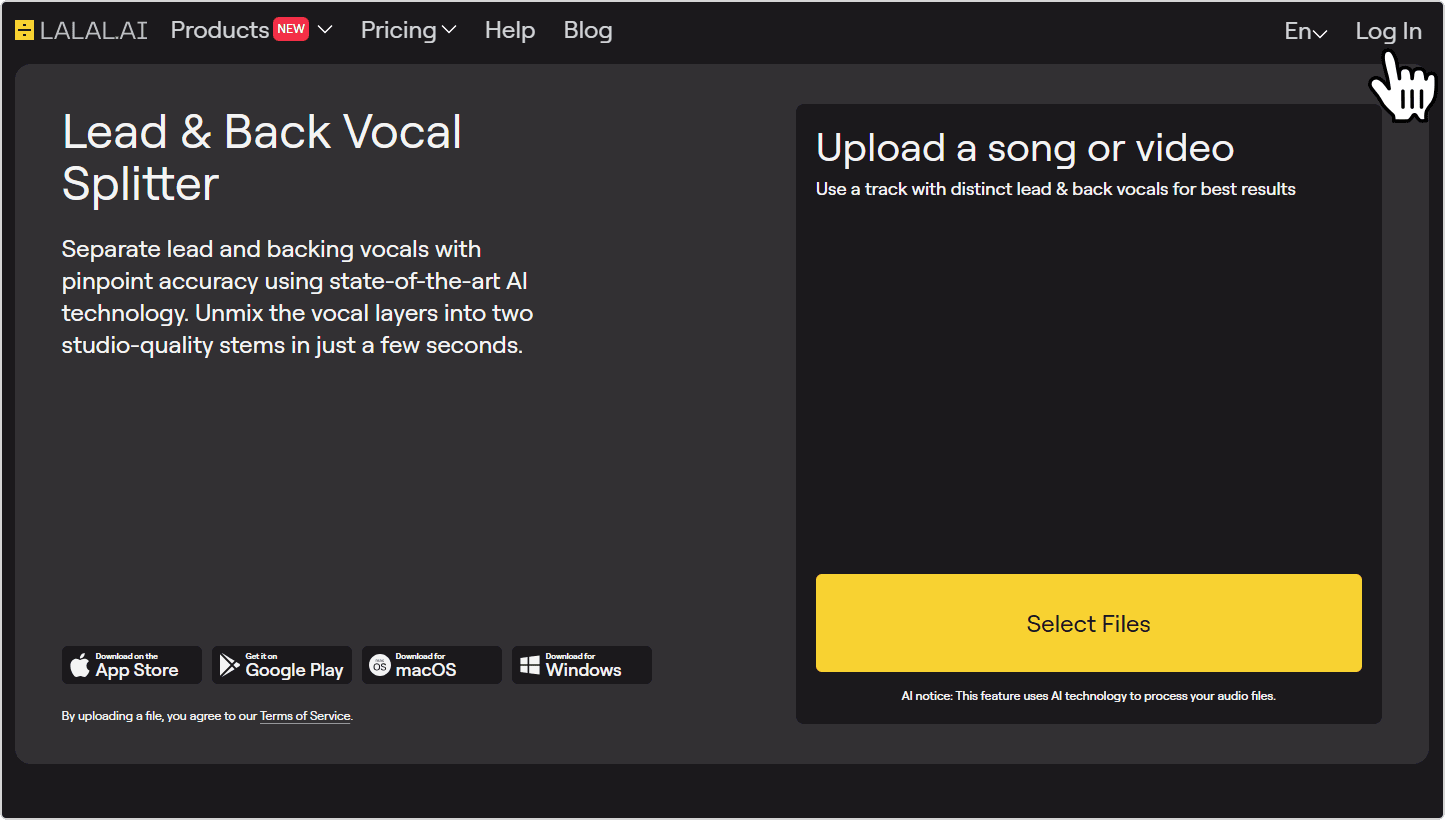
- Open the splitter and sign in. Go to the LALAL.AI Lead & Back Vocal Splitter page. Log in or create an account if you don’t have one yet.
![LALAL.AI Lead & Back Vocal Splitter page]()
- Upload your audio or video file. Click Select Files to upload your track, or drag and drop it directly into the upload area. The splitter accepts most common audio formats (MP3, WAV, FLAC, AIFF, OGG, AAC, M4A) and video formats (MP4, MKV, MOV, AVI).
![Upload an audio or video file to the splitter]()
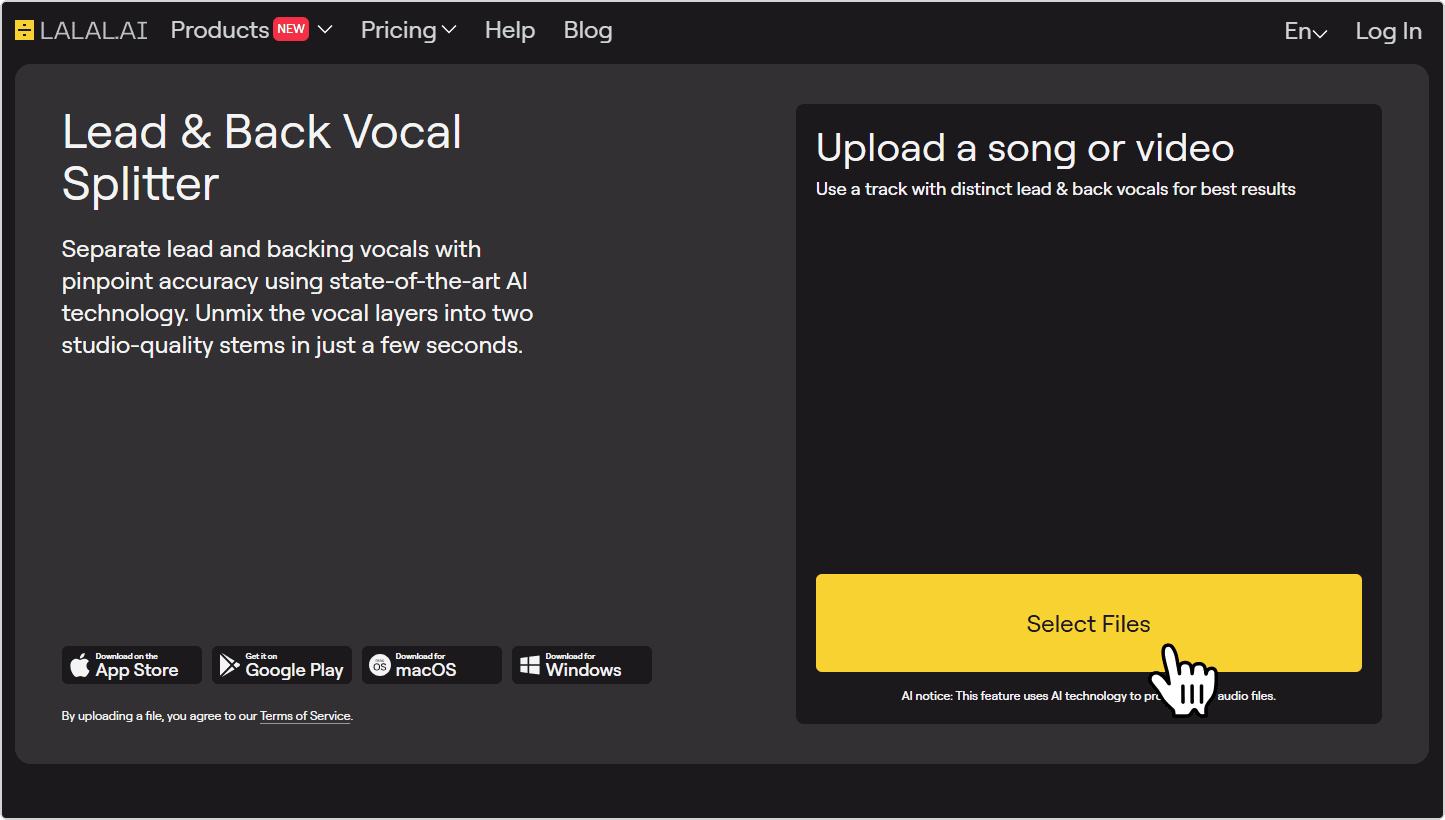
File quality matters. A lossless WAV or FLAC will produce cleaner stems than a compressed MP3. If you have a higher-quality version of the file, use it instead.
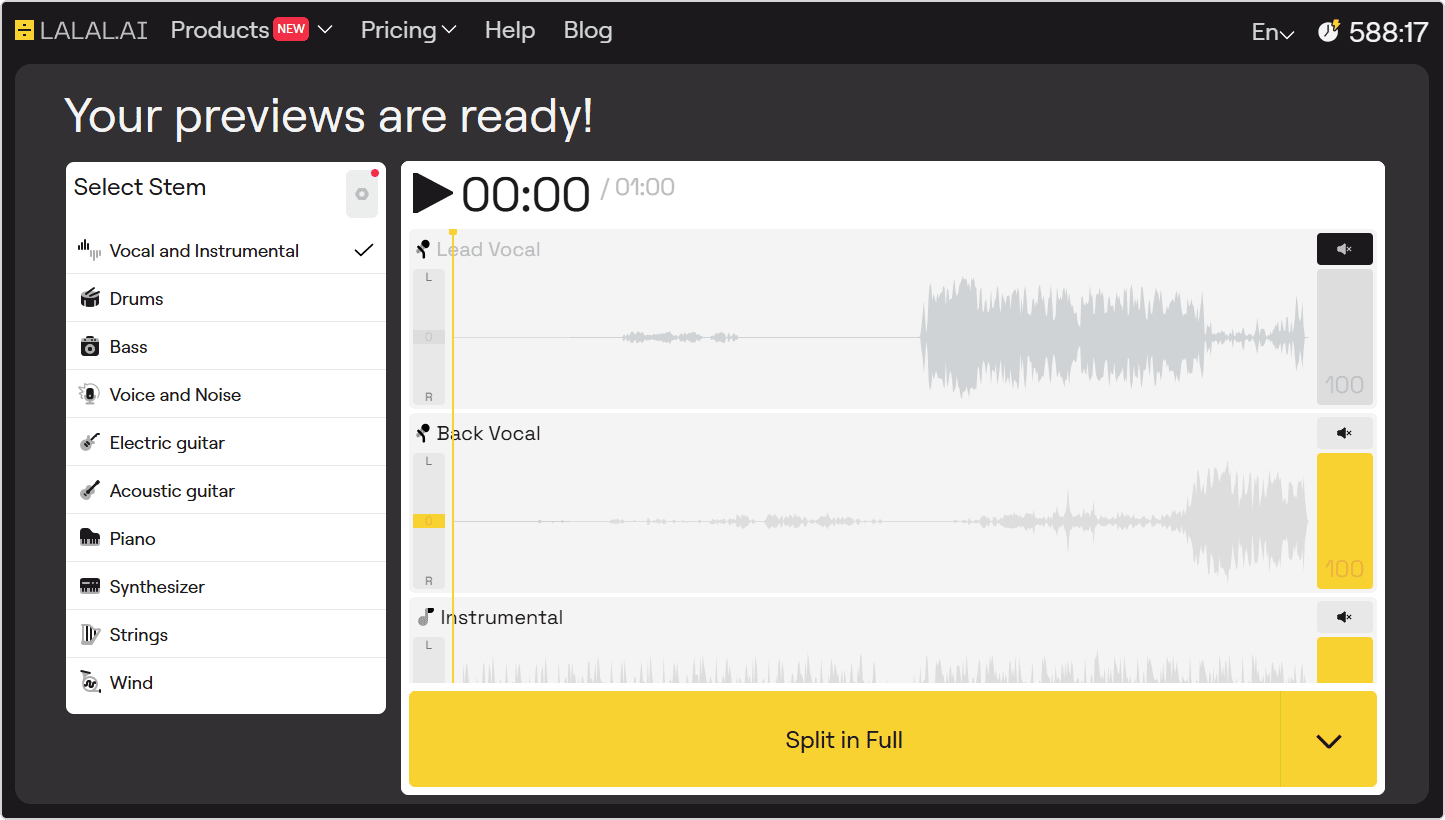
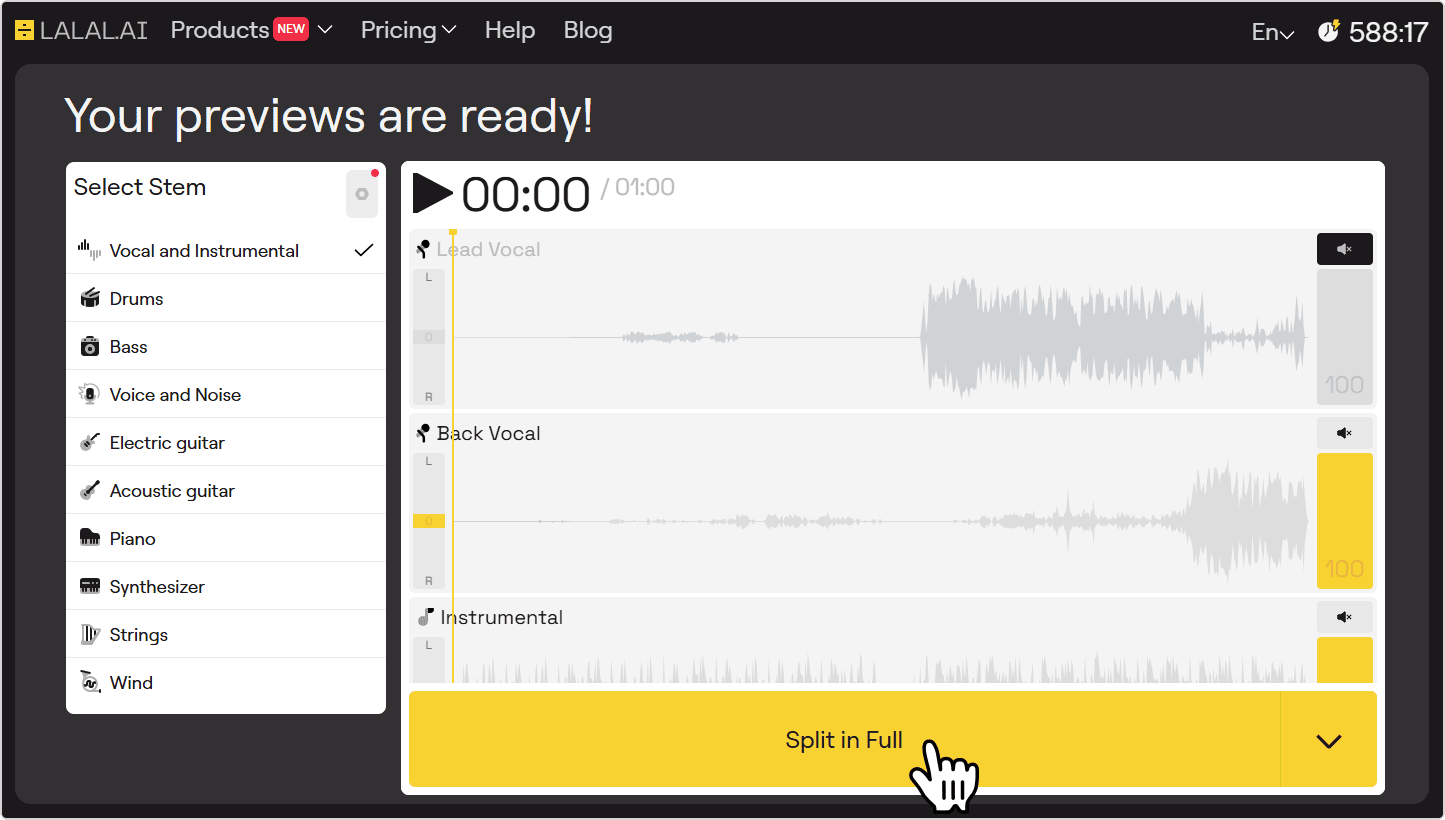
- Check the preview. LALAL.AI processes the first 60 seconds automatically. The Back Vocal + Instrumental stem isn’t part of the preview, so check the Back Vocal and Instrumental previews to get a sense of how they will sound once combined. Mute the Lead Vocal stem preview, then unmute the other two stem previews and click the play button.
![Back Vocal and Instrumental previews with the Lead Vocal muted]()
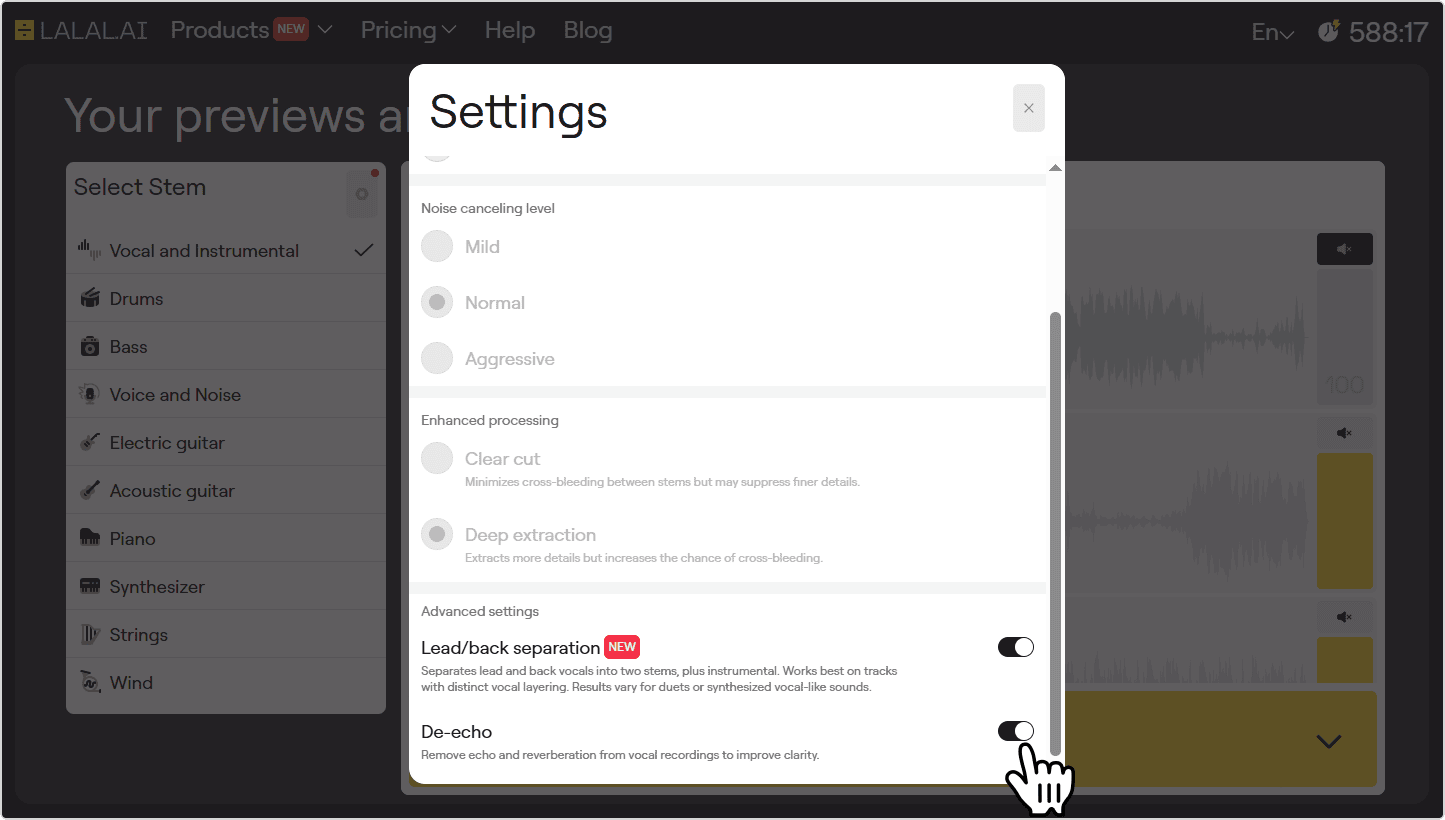
If the preview sounds off, click the settings icon in the top-right corner of the stem selector and try enabling the De-Echo toggle, which removes echo and reverb from the source audio. You can also re-upload a higher-quality version of the file for cleaner results.
- Process the full file. If the preview sounds good, click the Split in Full button to process the complete file.
![Split in Full button]()
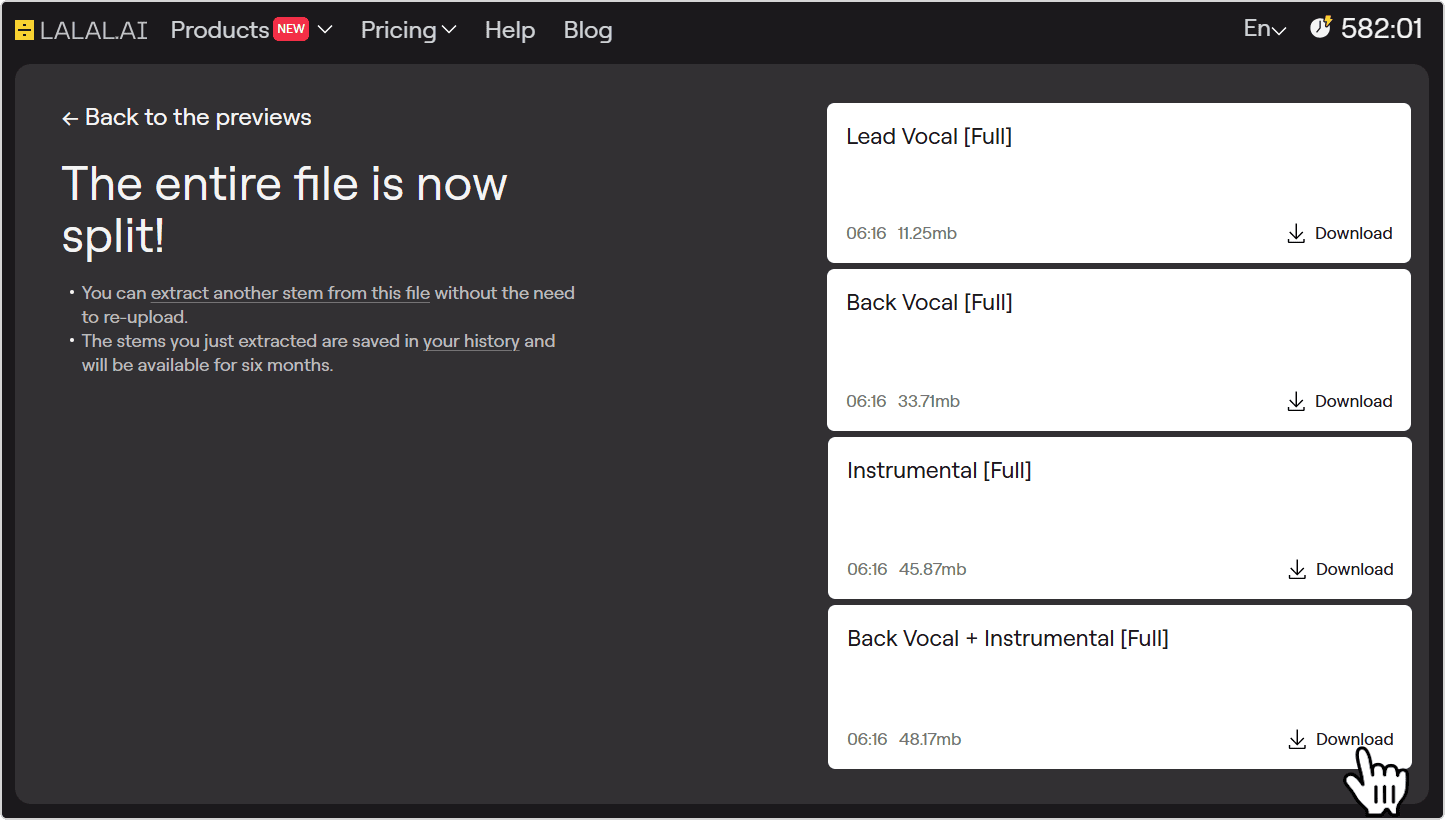
- Download the stem. Once processing is done, all four stems are available: Lead Vocal, Back Vocal, Instrumental, and Back Vocal + Instrumental. Click the Download button next to Back Vocal + Instrumental to get your finished backing track.
![Download button next to the Back Vocal + Instrumental stem]()
Tips for Getting the Best Results
- Always start from the best available file. Compressed formats like MP3 carry encoding artifacts that reduce separation quality across any stem. A lossless WAV or FLAC source produces a noticeably cleaner result.
- Preview the Back Vocal and Instrumental stems individually. The combined stem isn’t generated until after full processing, so checking the two component stems beforehand is the only way to gauge quality in advance.
- Listen closely to the Back Vocal preview on its own. A backing track only sounds natural if the harmonies are clearly present without sounding hollow or thin. If the Back Vocal preview sounds weak, distorted, or full of bleed, it’s worth trying a different source file before processing the full track.
- Enable De-Echo if the backing vocals sound washed out. Reverb-heavy harmonies can make a backing track feel muddy once layered with the instrumental. The De-Echo toggle in settings tightens up the vocal stem before the two are combined.
- Balance the final mix in a DAW if needed. Since the Back Vocal and Instrumental layers arrive pre-combined, you won’t be able to adjust their relative volume after downloading. If you need that control, download Back Vocal and Instrumental separately and mix them yourself instead of using the combined stem.
- Run the result through Voice Cleaner if noise remains.LALAL.AI Voice Cleaner can strip background noise from the finished backing track without disturbing the balance between instruments and harmonies.
常见问题
What’s the difference between a backing track and an instrumental?
An instrumental contains no vocals at all, lead or backing. A backing track, in this context, keeps the backing harmonies in place and removes only the lead vocal, which is exactly what the Back Vocal + Instrumental stem provides.
Can I adjust the volume of the vocals within the backing track?
Not within the combined stem itself, since it’s delivered as one mixed file. For independent control over the backing vocal and instrumental levels, download both stems separately and balance them in a DAW instead.
What if the song has no backing vocals at all?
The Back Vocal + Instrumental stem will sound close to a plain instrumental, since there’s little or nothing in the Back Vocal layer to combine with it.
What format will the backing track download as?
By default, the output matches the format of the uploaded file. Before clicking Split in Full, you can click the arrow next to the button to choose a different format. Supported output formats are MP3, OGG, AAC, AIFF, WAV, and FLAC.
Can I use a video file as the source?
Yes, you can upload and process video files in MP4, MKV, MOV, and AVI. The audio is extracted automatically and processed the same way as any audio upload. Useful if your only copy of a performance is a video recording.
Can I use the finished backing track for a live show or recording?
Creating the stem doesn’t grant rights to the underlying song. Performing or distributing a backing track built from a commercially released recording may require a license, depending on the context and how it’s used.
