LALAL.AI Introduces Two-Factor Authentication
Two-factor authentication is now available on all LALAL.AI accounts, adding an extra layer of protection when you sign in.

Starting July 3, two-factor authentication (2FA) is available to every LALAL.AI user. It’s an extra layer of security for your account, and it takes just a couple of minutes to set up.
What 2FA Does
Two-factor authentication adds a second check when you sign in. Along with your password, you’ll enter a six-digit code from an authenticator app such as Google Authenticator, Microsoft Authenticator, or Authy. These codes are generated using the TOTP standard and refresh every 30 seconds, so even if someone gets hold of your password, they still won't be able to get into your account without your phone.
What’s New in Your Account
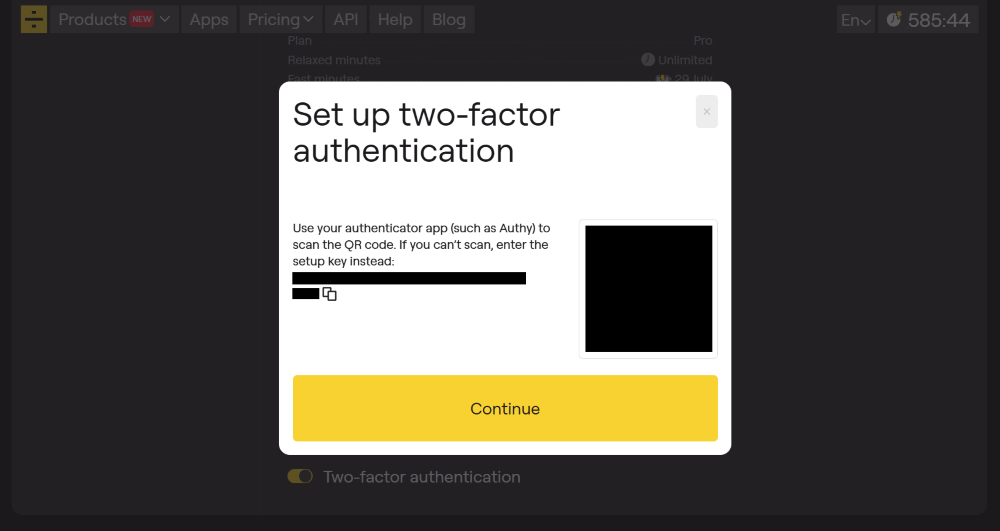
You’ll now find a 2FA section at the bottom of your profile page. From there, you can turn 2FA on or off and connect your authenticator app, either by scanning a QR code or by entering a setup key by hand.
When you turn 2FA on, LALAL.AI gives you 10 backup codes. Keep these somewhere safe. If you ever lose access to your phone, a backup code lets you sign in without the authenticator app. Each code works only once, and you can generate a fresh set at any time from your profile. Note that regenerating backup codes requires a code from your authenticator app; a backup code won't work for this step.
Once 2FA is on, you’ll be asked for a code every time you sign in, whether on the web or in the app, using either your authenticator app or one of your backup codes.
If a new phone and a missing set of backup codes leave you locked out entirely, you’re not stuck. Reach out to our support team, and once they’ve confirmed your identity, they can clear 2FA from your account so you can sign back in and set it up fresh on your new device.
How to Turn It On
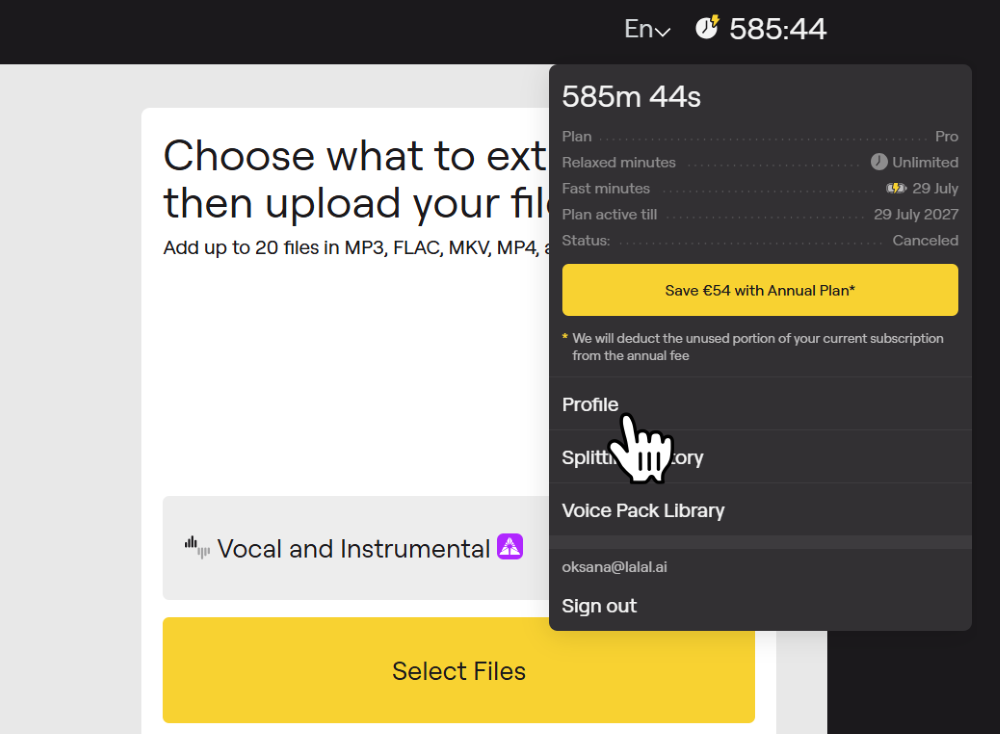
1. While signed in to the web version of LALAL.AI, hover over your minute balance in the top right corner of the page.

2. Select Profile from the dropdown menu.
3. Scroll to the bottom of the profile page, where you’ll find the Two-factor authentication setting.
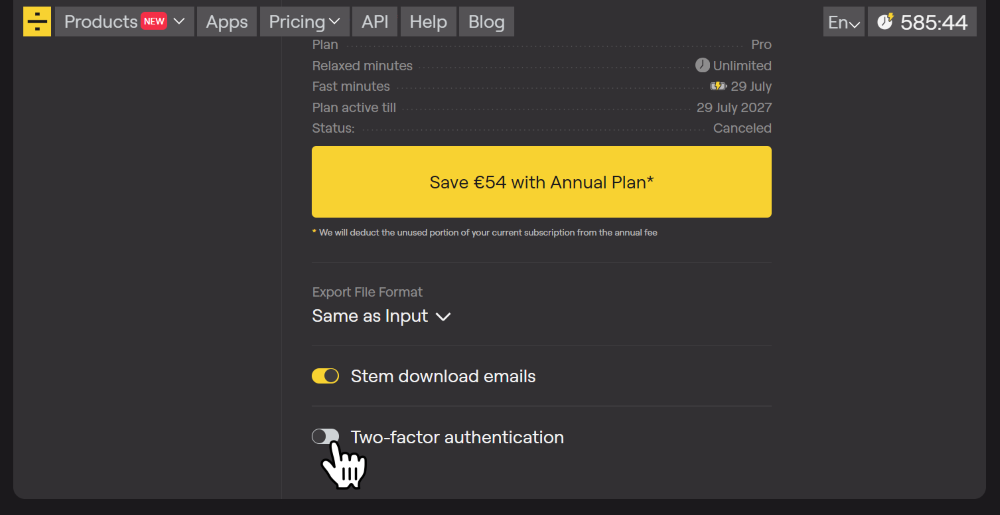
4. Click the toggle next to the setting.
5. Follow the on-screen instructions to scan the QR code (or enter the setup key) in your authenticator app, then confirm.
A Few Things Worth Knowing
● 2FA requires app version 2.16 or later. On older versions, signing in to a 2FA-enabled account won’t complete. Update your app to the latest version (if you haven’t already) to resolve it.
● Turning on 2FA doesn’t log you out of sessions you’re already signed into. You’ll only be asked for a code the next time you sign in again.
● Every change to your 2FA settings (turning it on, turning it off, or regenerating backup codes) sends you an email notification, so you’ll always know if something changes on your account.
● If codes aren’t going through, the most likely reason is your phone’s clock. If automatic date and time aren’t switched on, your phone falls out of sync and the code it generates won’t match. It’s also worth double-checking you’re pulling the code from the LALAL.AI entry, in case you use the same authenticator app for other services too.
● Entering the wrong code several times in a row will briefly pause further attempts. It lifts on its own after a short wait.
Turn It On Today
Security works best in layers, and 2FA is an easy one to add. Setting up 2FA takes just a few minutes and adds real protection against unauthorized access to your account. Head to your profile and turn it on today.
Follow LALAL.AI on Instagram, Facebook, Twitter, TikTok, Reddit, and YouTube to keep up with all our updates and special offers.