How to Adjust Tonality & Accent in LALAL.AI Voice Cloner
And why it matters more than you think.

If, when creating a voice clone, you apply the Voice Pack in the Voice Changer and get confused that it doesn’t sound exactly like the voice you cloned, this article is for you.
In most cases, the problem isn’t the clone itself; it’s the settings.
LALAL.AI Voice Cloner, or rather, Voice Changer that you use the result Pack in, includes two important controls inside each voice pack: Tonality and Accent. Some people simply never notice them, and the default settings might not match what you want the clone to do.
This short guide shows where to find these settings, how they work, and how to use them to get the most accurate, natural-sounding results.
How Voice Packs Are Created in LALAL.AI Voice Cloner
If you’re new to the Voice Cloner, here’s the basic flow:
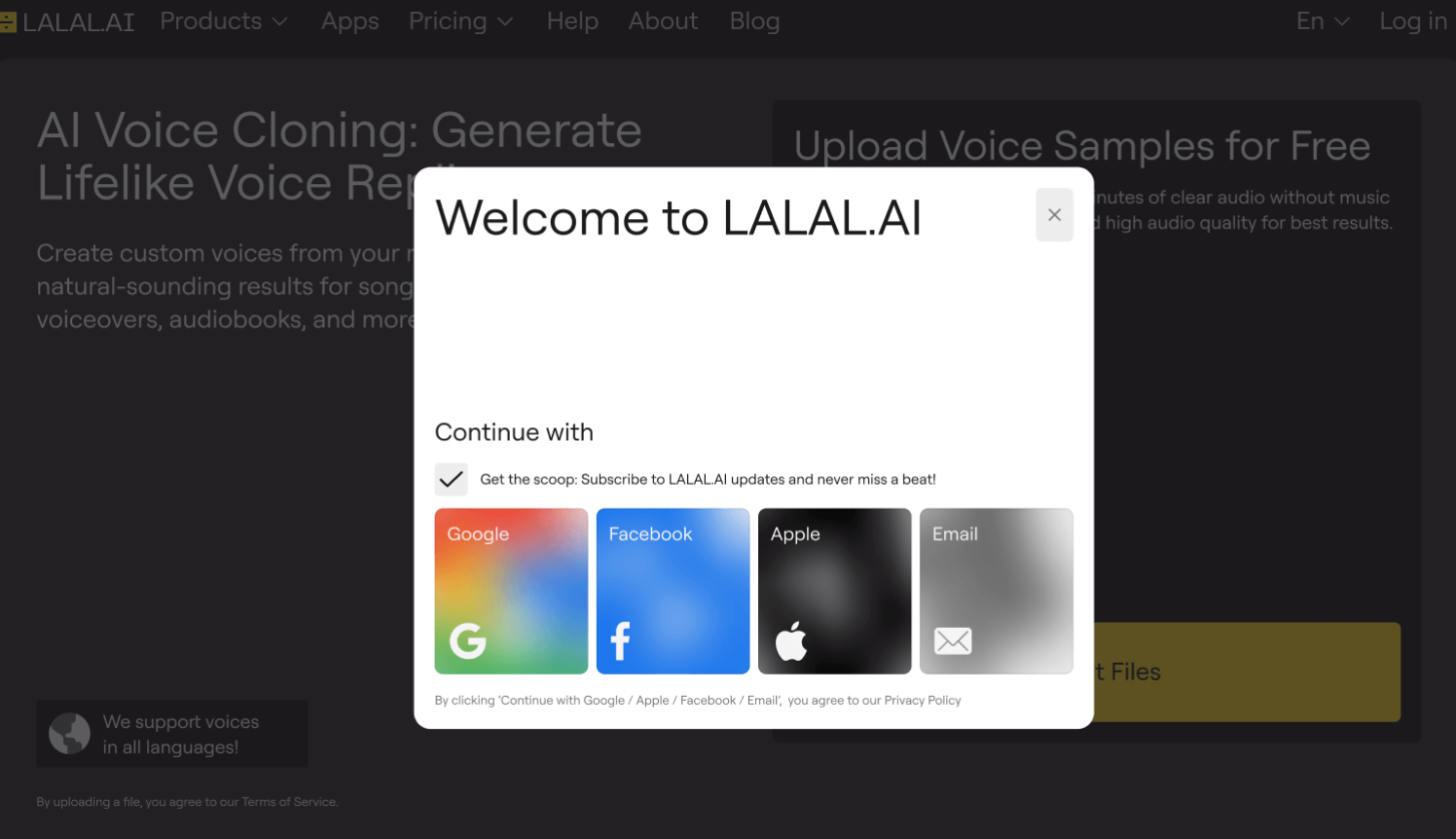
- Log in or register on the Voice Cloner page.
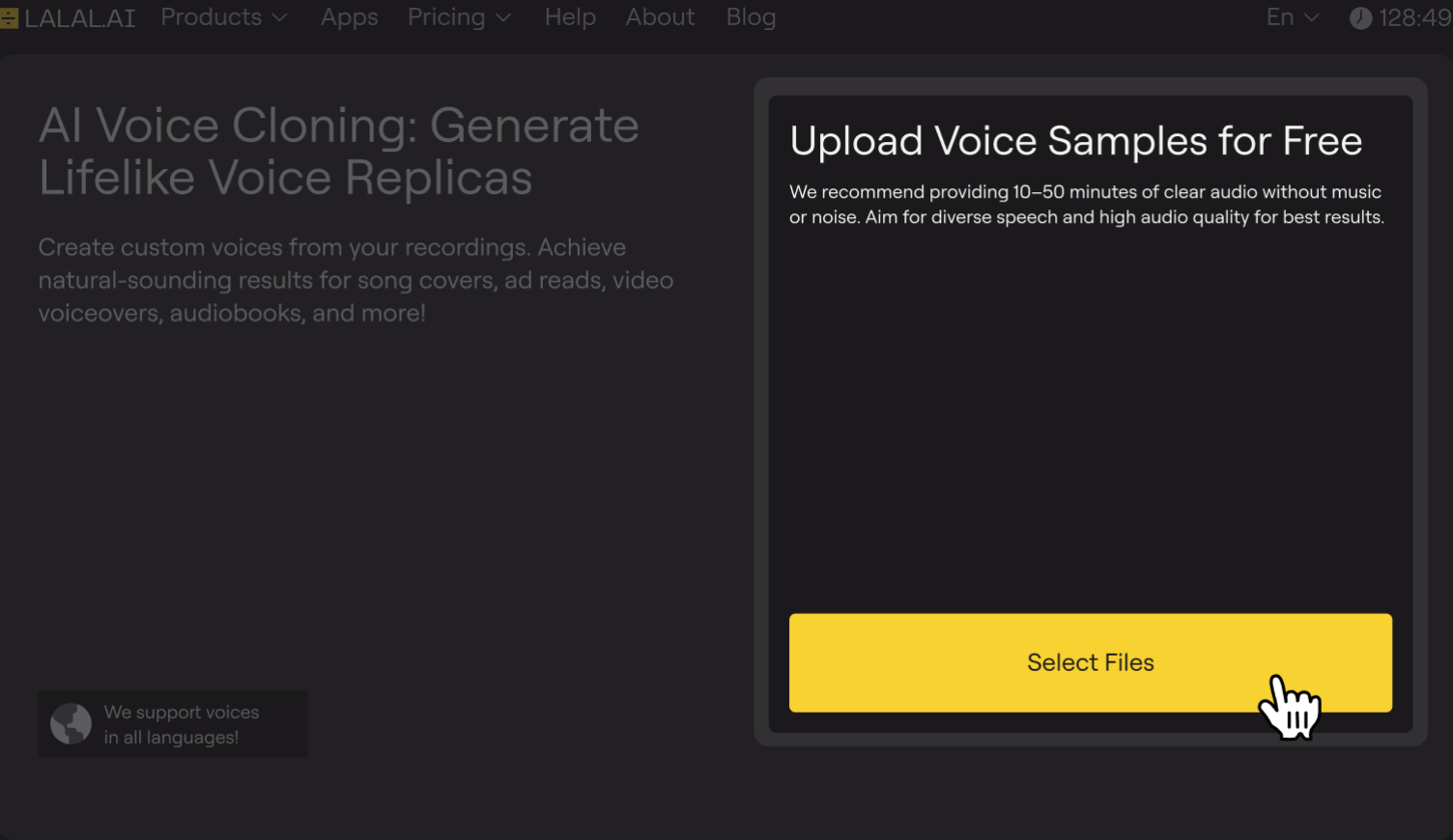
- Upload 10–50 minutes of clean voice samples without noise or music. Use different speaking styles for best results.
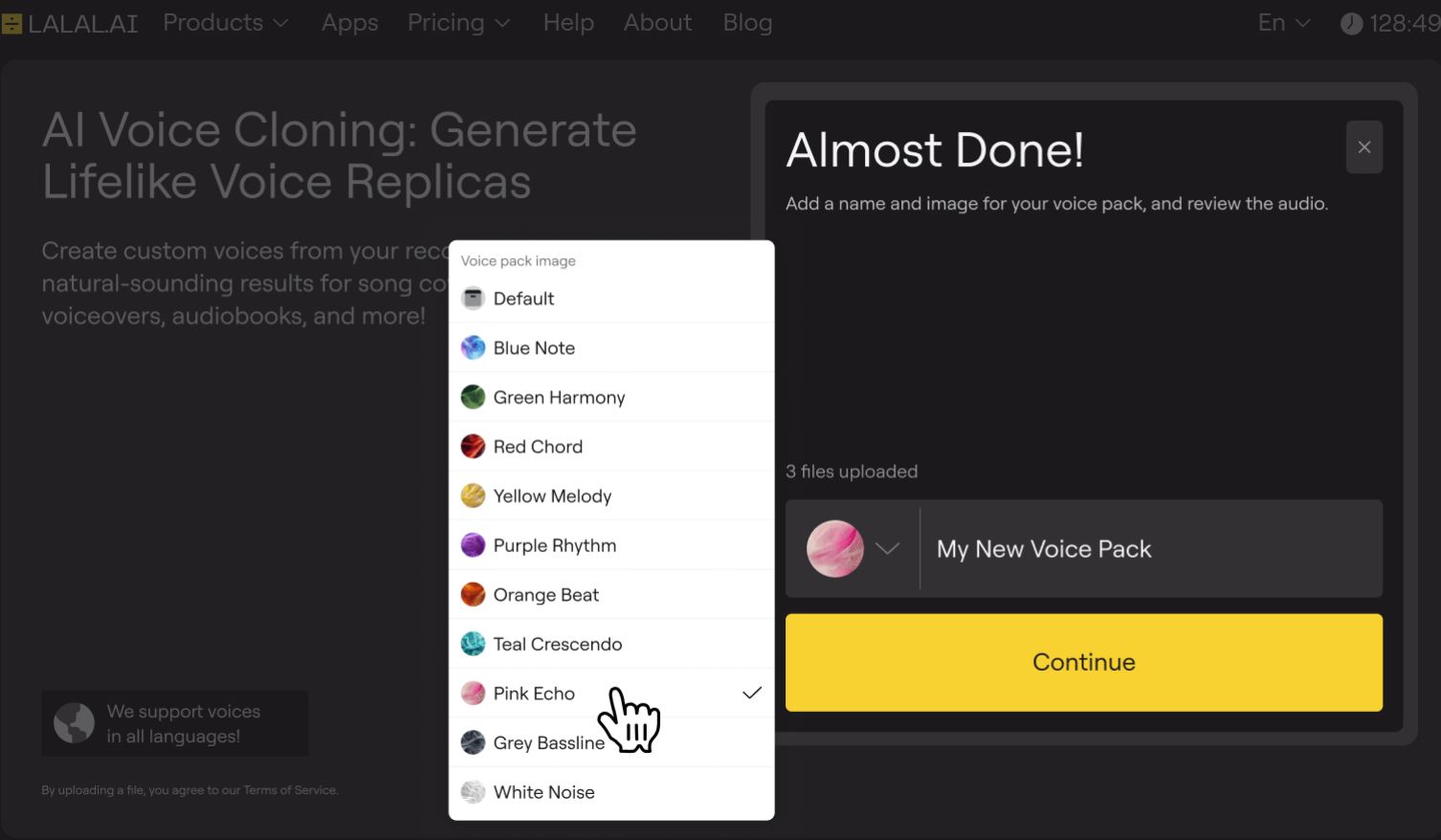
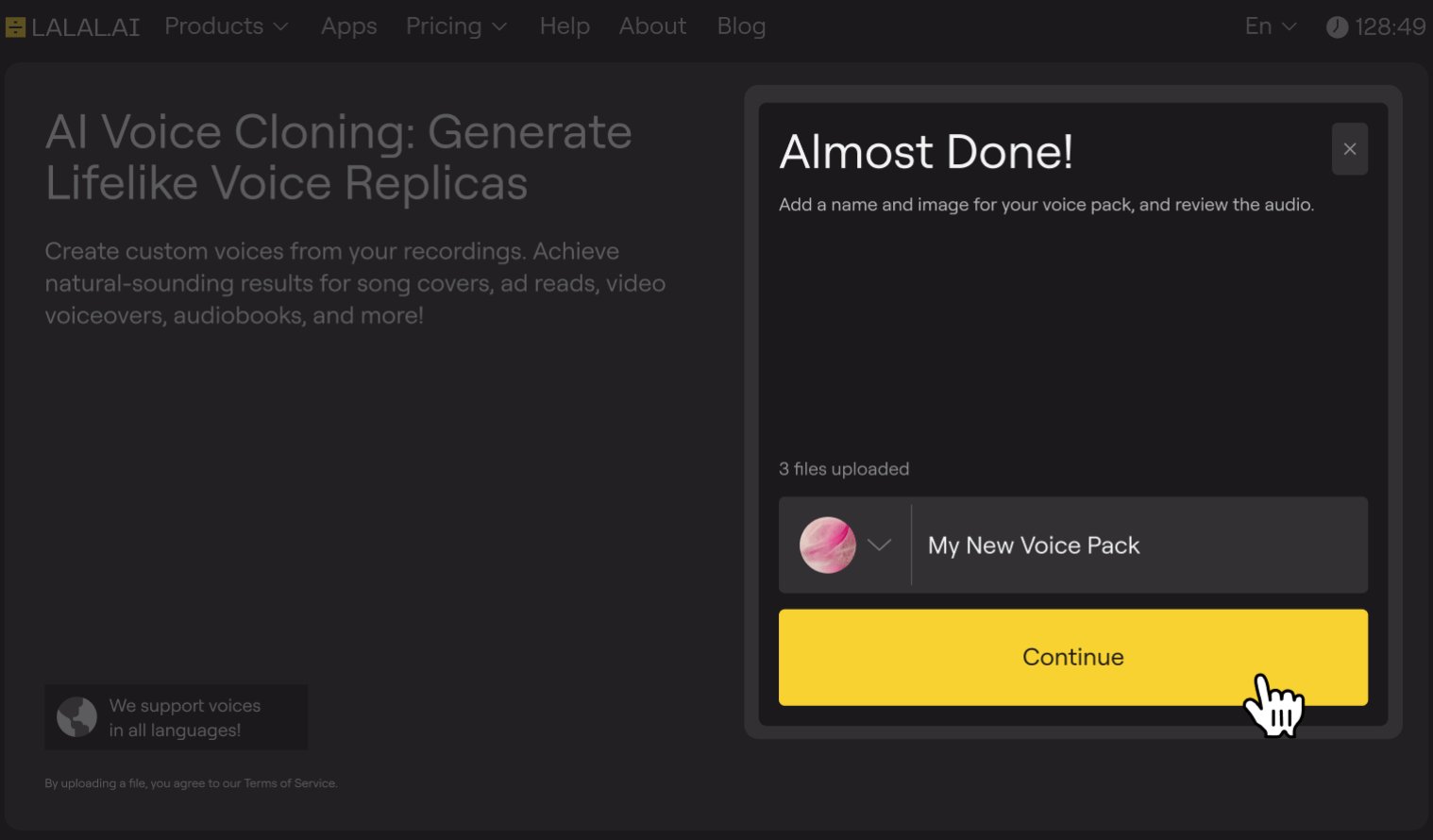
- Name your clone and choose an avatar.
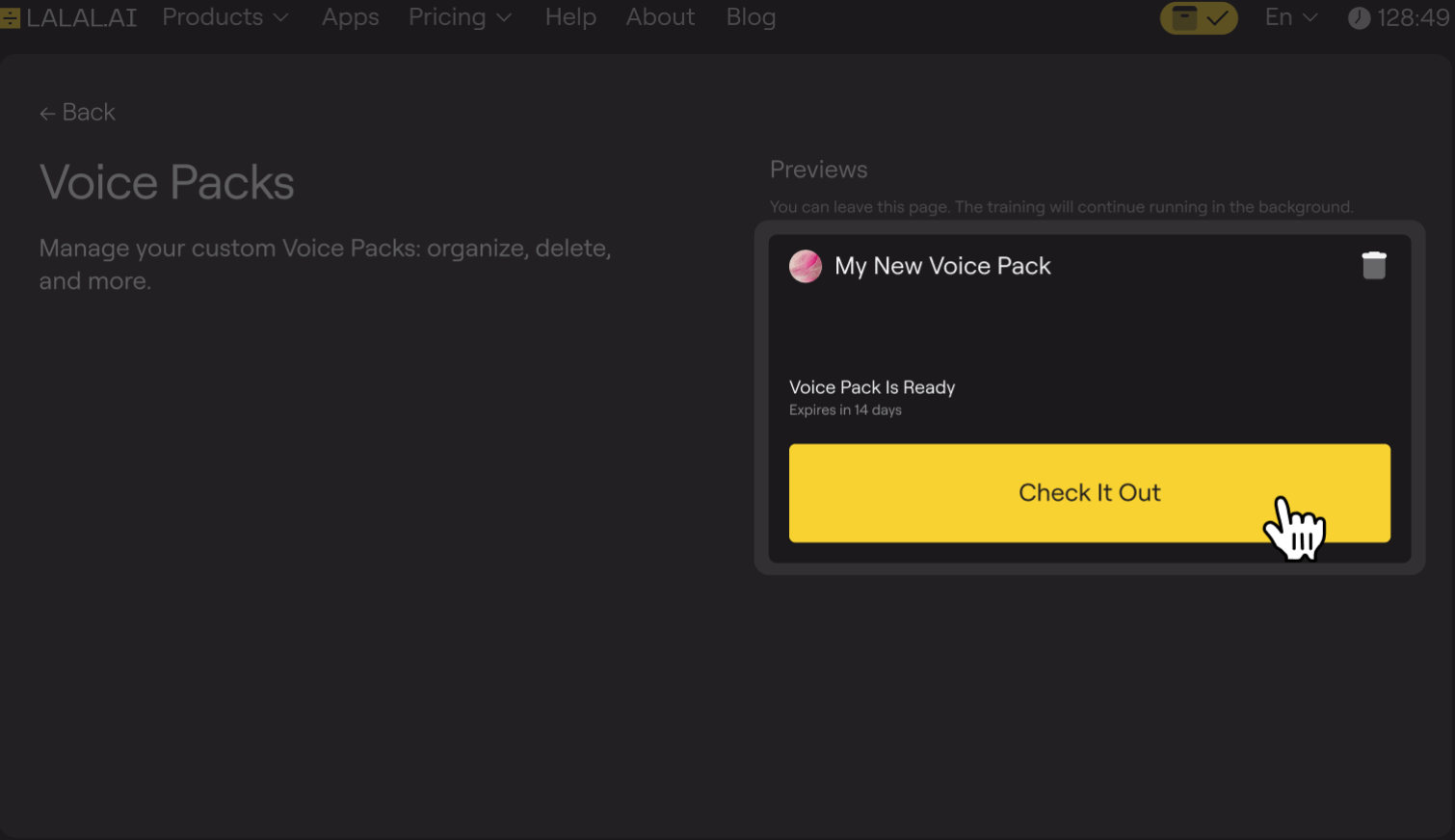
- Start training. You can close the page while it processes.
- Preview your clone once training is complete.
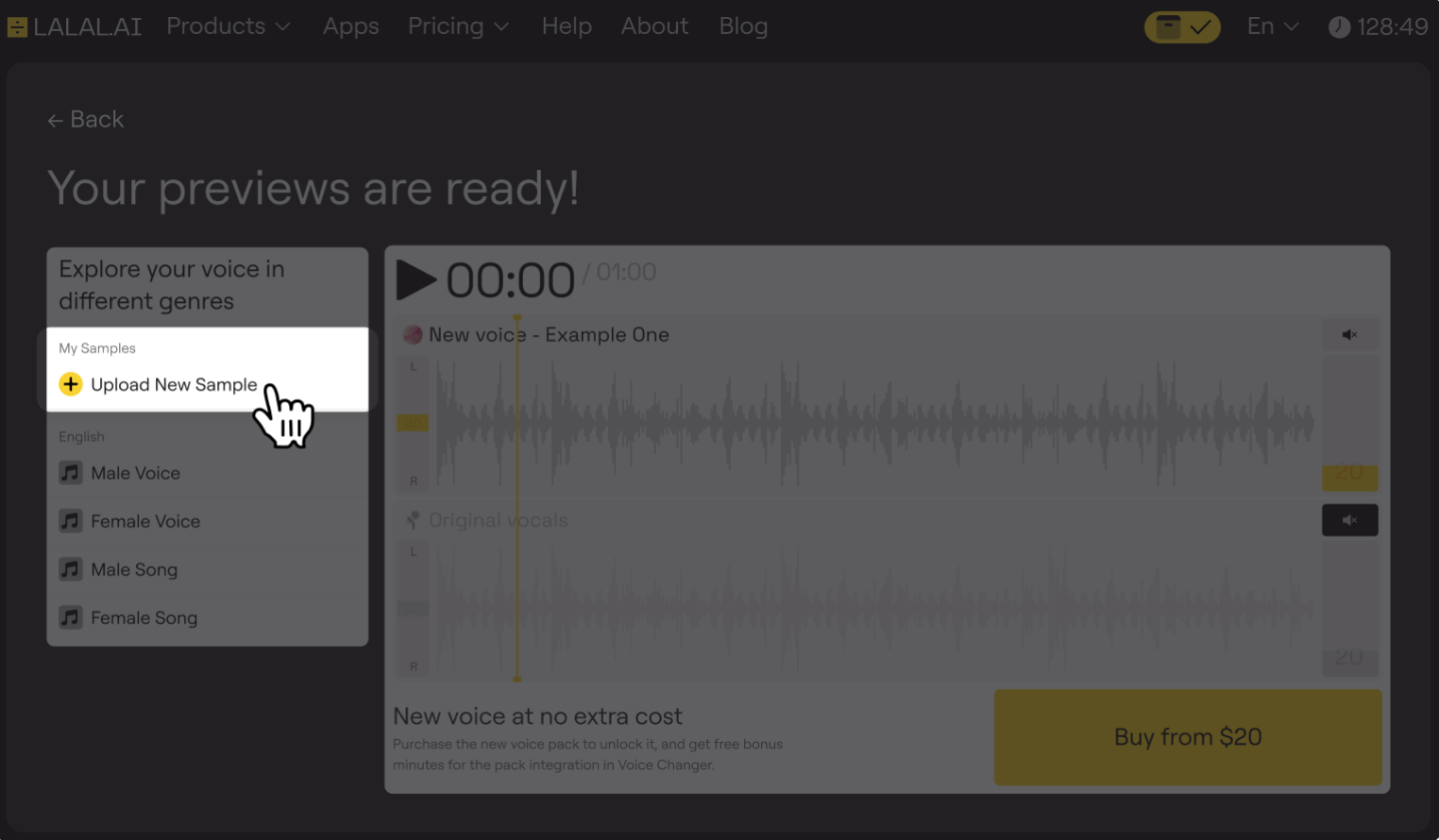
- (Optional) Add up to 3 custom preview samples for more accurate testing. Click the Upload New Sample button in the left menu on the preview page.
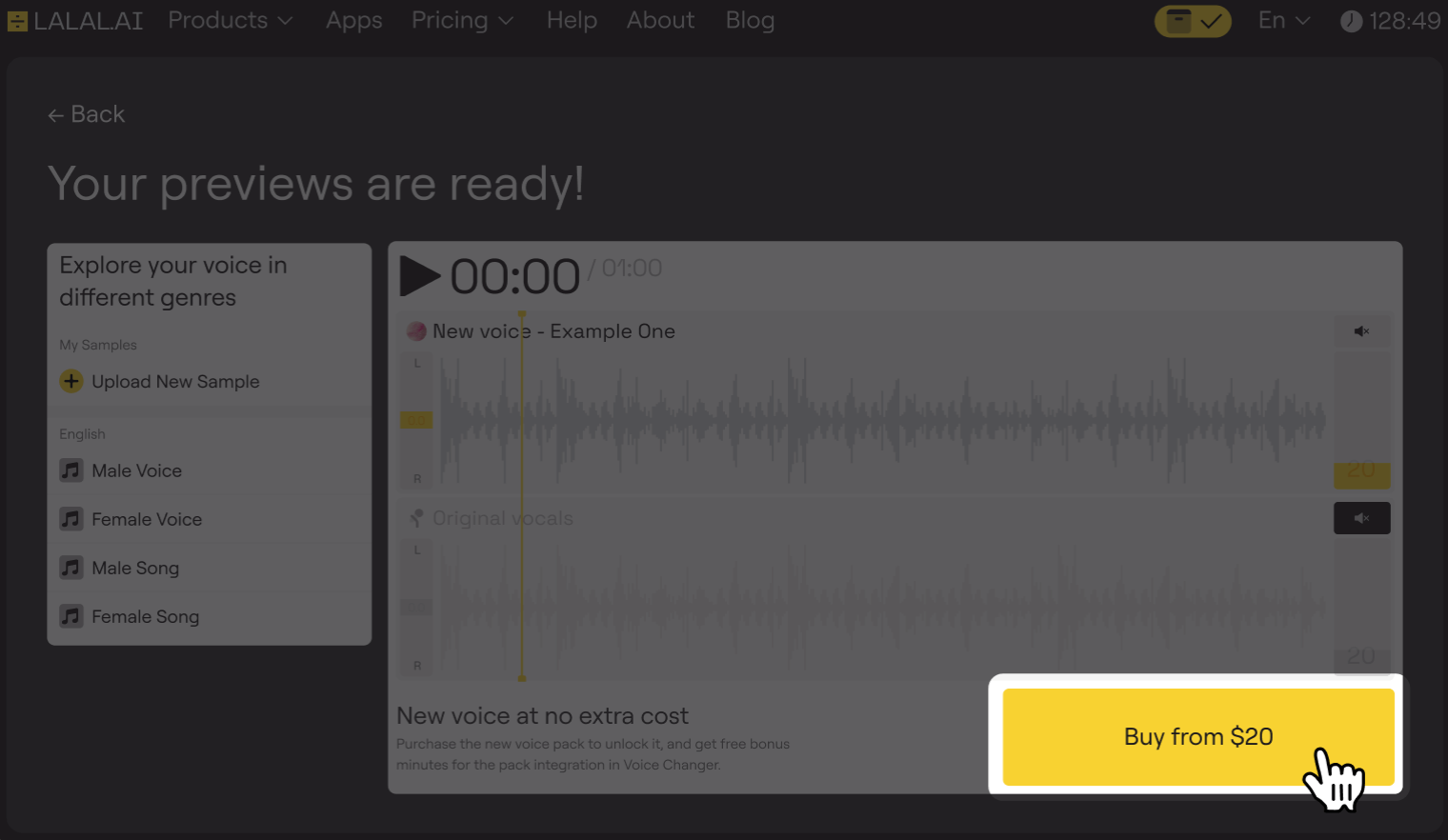
- Purchase the clone to unlock full access if you like the preview. If not, create a new Voice Pack.
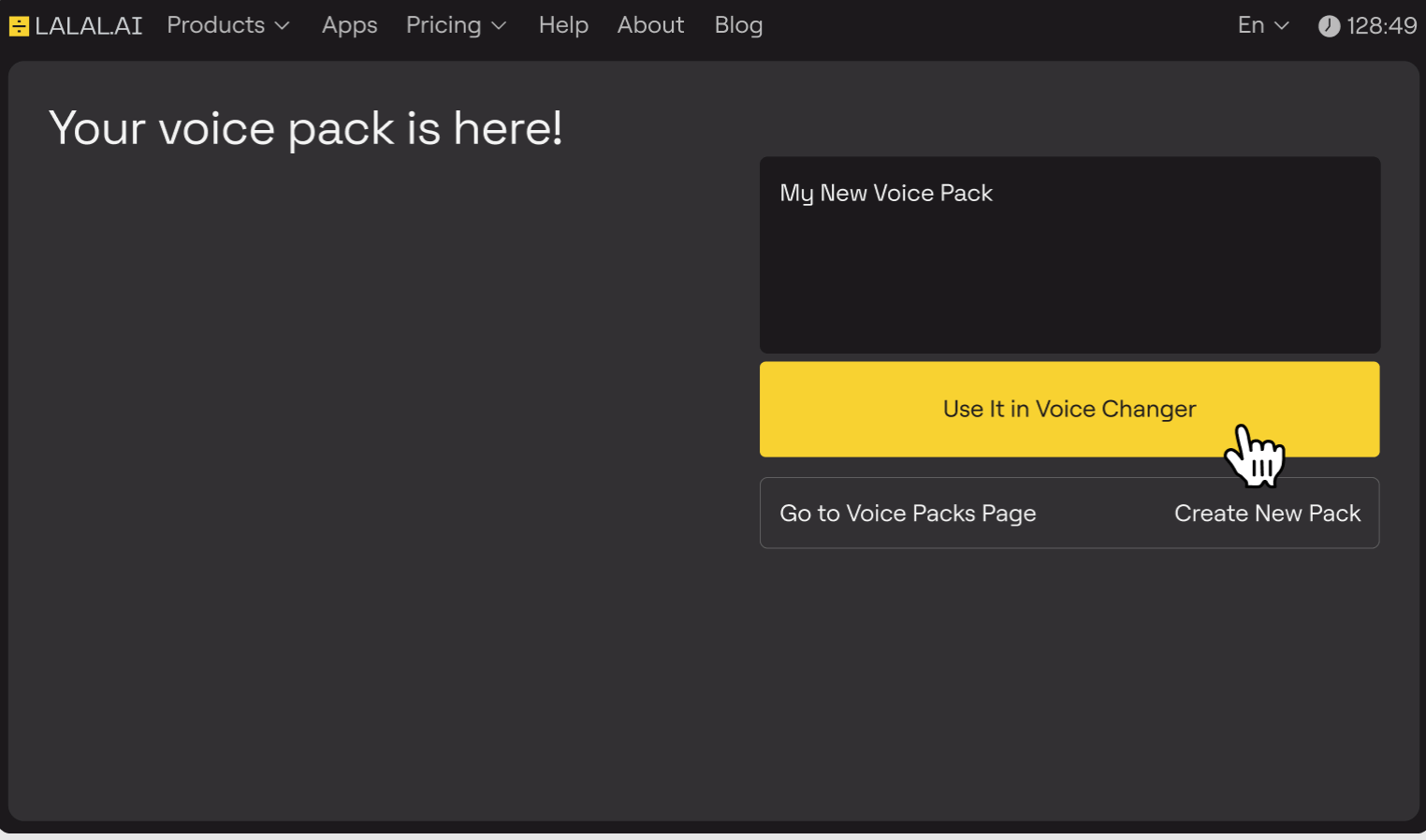
- Use it in Voice Changer to convert any audio into this voice.
Now, the part some people might overlook.
Where to Find Tonality & Accent Settings
- Go to Voice Changer.
- Select the Voice Pack you just created.
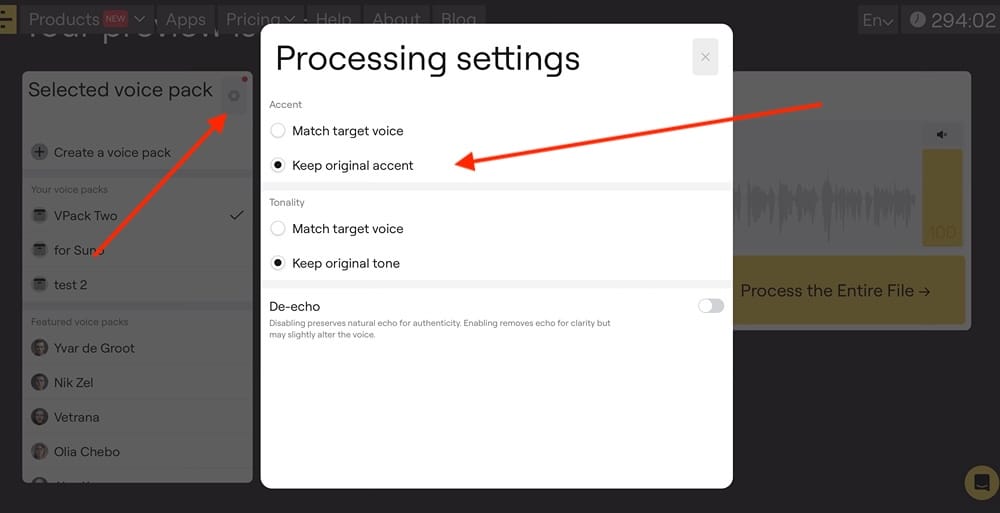
- Click the gear icon (Settings) next to the selected pack.
- You’ll see two toggles: Tonality and Accent.
Accent
Accent defines how the words are pronounced. This includes pronunciation patterns, phonetic habits, and language-specific articulation.
- 'Match target voice' applies the accent of the target voice model (target = the voice you want to dub the original audio with). The output speech adopts the pronunciation style associated with the target voice, regardless of how the original recording was spoken.
- 'Keep original accent' preserves the accent from the original recording. Even though the voice timbre changes, the pronunciation patterns of the source speaker remain intact.
Tonality
Tone refers to how the speech sounds emotionally and stylistically. This includes intonation, expressiveness, vocal tension, softness or sharpness, and overall delivery.
- 'Match target voice' applies the tonal characteristics of the target voice model. The output reflects the emotional and stylistic manner of the target voice.
- 'Keep original tone' preserves the tone of the original recording. The delivery, emotional coloring, and speaking manner remain close to the source performance, even when the voice itself changes.
After choosing the settings, Voice Changer will process your file. In a few seconds, your adjusted audio will be ready for download.
Take a look at this example: here, we've kept the speaker's accent and tone to show the contrast between the auto-dubbing on YouTube which sounds robotic and unnatural.
💡Pro Tip: These Settings Fix 90% of “My Clone Doesn’t Sound Like the Target Voice” Complaints
Tonality and Accent define how your clone performs, not how it is trained. If the Tone/Accent settings don’t match your intention, the result may sound flatter, more accented, or less recognizable than expected.
Now you know where to find these options, and how to make your clone perform exactly the way you want.
Follow LALAL.AI on Instagram, Facebook, Twitter, TikTok, Reddit, LinkedIn, and YouTube to keep up with all our updates and special offers.