How to Remove Background Noise from WhatsApp Voice Messages
Learn how to remove background noise from WhatsApp voice messages on iPhone and Android with the LALAL.AI app, plus free browser and desktop alternatives.

Your phone’s microphone has no idea which sound matters, so a passing bus or a humming fridge gets recorded with exactly the same enthusiasm as your words. By the time the recipient hits play, the message you meant to send is buried somewhere under the background.
WhatsApp itself won’t help much here. Meta has been rolling out noise cancellation for voice and video calls, yet recorded voice messages still go out exactly as captured. The fix happens after the fact when you pull the audio out of the chat and run it through a dedicated tool before sending it back or using it for further editing.
We’ll walk you through some of the methods that actually work, starting with the quickest one that never leaves your phone.
Method 1: Clean WhatsApp Voice Notes with the LALAL.AI Mobile App
The LALAL.AI noise removal app (called Noise Remover on iPhone and Noise Reducer on Android) runs on Lynx, a neural network LALAL.AI built exclusively for speech denoising. Rather than shaving off a single frequency band, it separates your voice from everything around it, be it street traffic or music playing in the next room. Processing happens on LALAL.AI’s servers, so you’ll need an internet connection, but nothing beyond your phone.
Step 1: Get the Voice Note out of WhatsApp
WhatsApp can’t hand a voice message straight to the LALAL.AI app, so the first move is saving it as a regular file.
On iPhone:
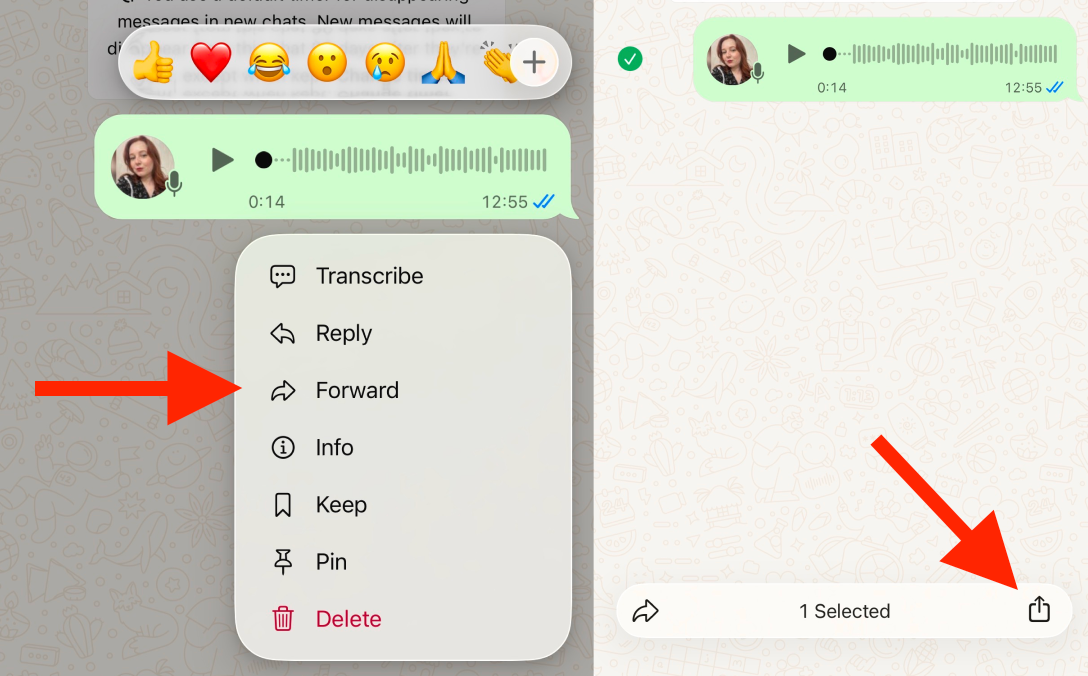
- Open the chat and press and hold the voice message.
- Tap Forward, then tap the Share icon in the bottom right corner.
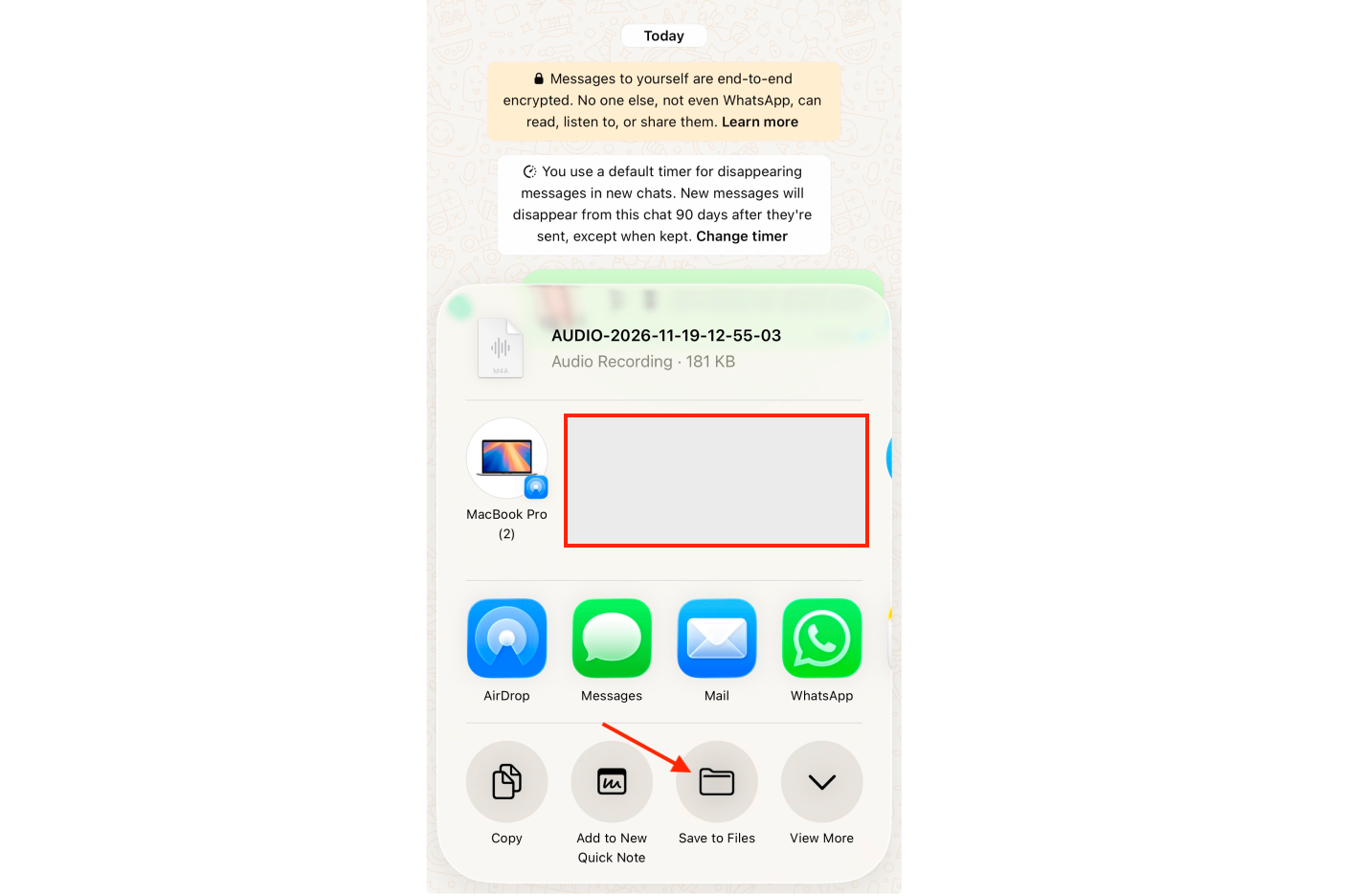
- Choose Save to Files and pick a folder, either On My iPhone or iCloud Drive.
On Android: voice notes already live in your phone’s storage once they’ve been played or downloaded. Open your file manager and head to Android -> media -> com.whatsapp -> WhatsApp -> Media -> WhatsApp Voice Notes (on Android 10 and older, the WhatsApp folder sits in the root of internal storage).
Or simply long-press the message in the chat and use the Share icon to save it wherever you like. For instance, in Files or Google Files.
Either way, you end up with an .opus file that the app can open.
Step 2: Upload the File and Choose Your Settings
- Download Noise Remover (iOS) or Noise Reducer (Android) on your phone. Below we’re showing steps for iOS, buy they’re identical on Android; only some interface elements are called differently.
- Open the app and sign up or log in.
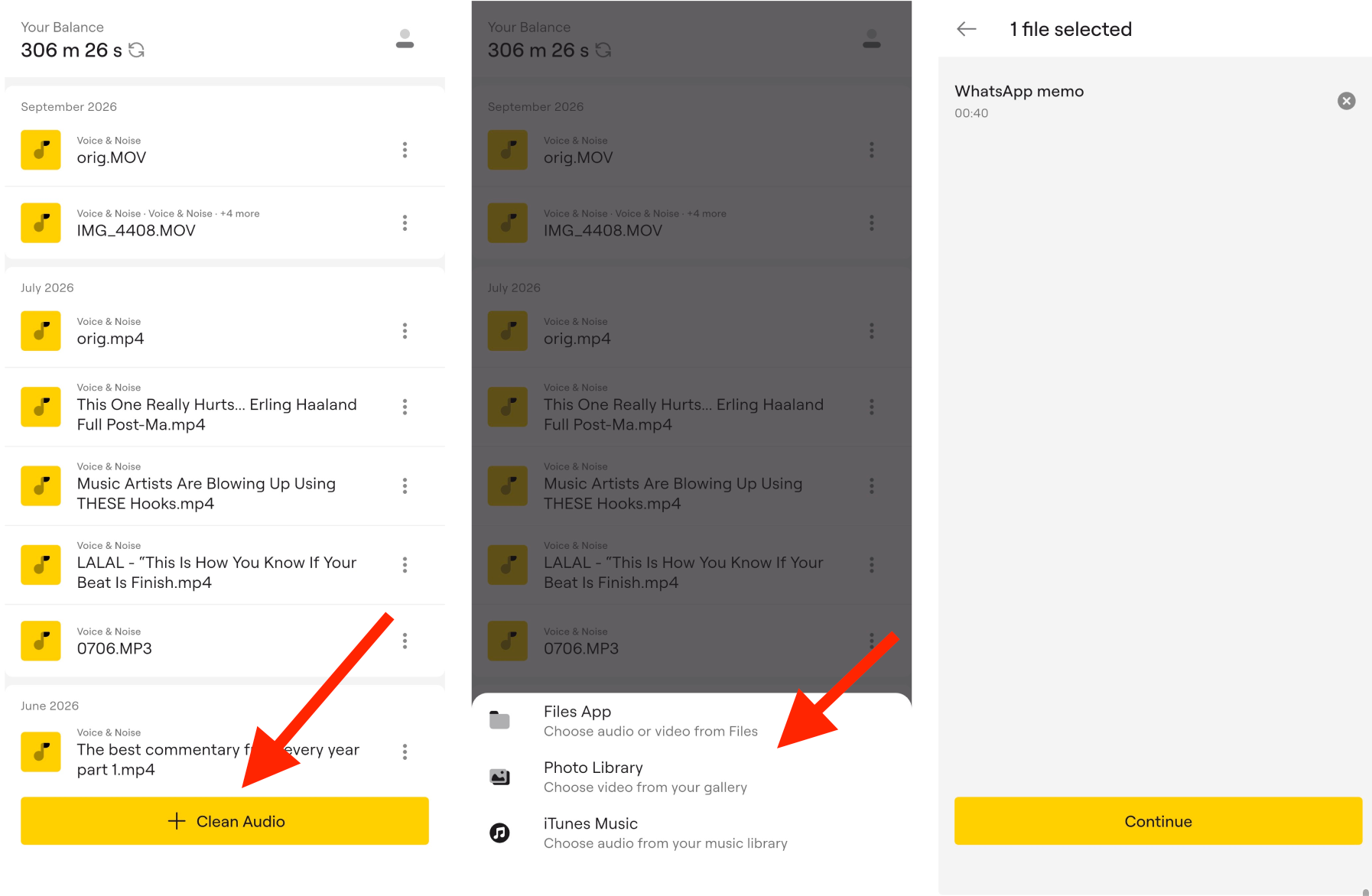
- Tap +Clean Audio and select the voice note from the Files app (the picker reaches your media libraries too, in case the recording ended up there).
- Tap Continue to open the processing settings.
- Leave Neural network on Lynx, which is selected by default.
- Set the Noise cancelling level (Mild, Normal, or Aggressive). Noise Canceling Level controls how much the volume of a quiet voice is raised after background noise has been removed, so a higher level makes a quiet voice easier to hear. Mild applies no additional processing, Normal raises a quiet voice moderately, and Aggressive raises it noticeably more.
- Toggle on Advanced settings, then switch on De-echo vocals if the voice note was recorded in a tiled bathroom or an echoey stairwell, and switch on Create preview. During the preview, you can play with different noise cancelling levels and neural networks to see which one works better for your recording.
- Tap Start Processing.
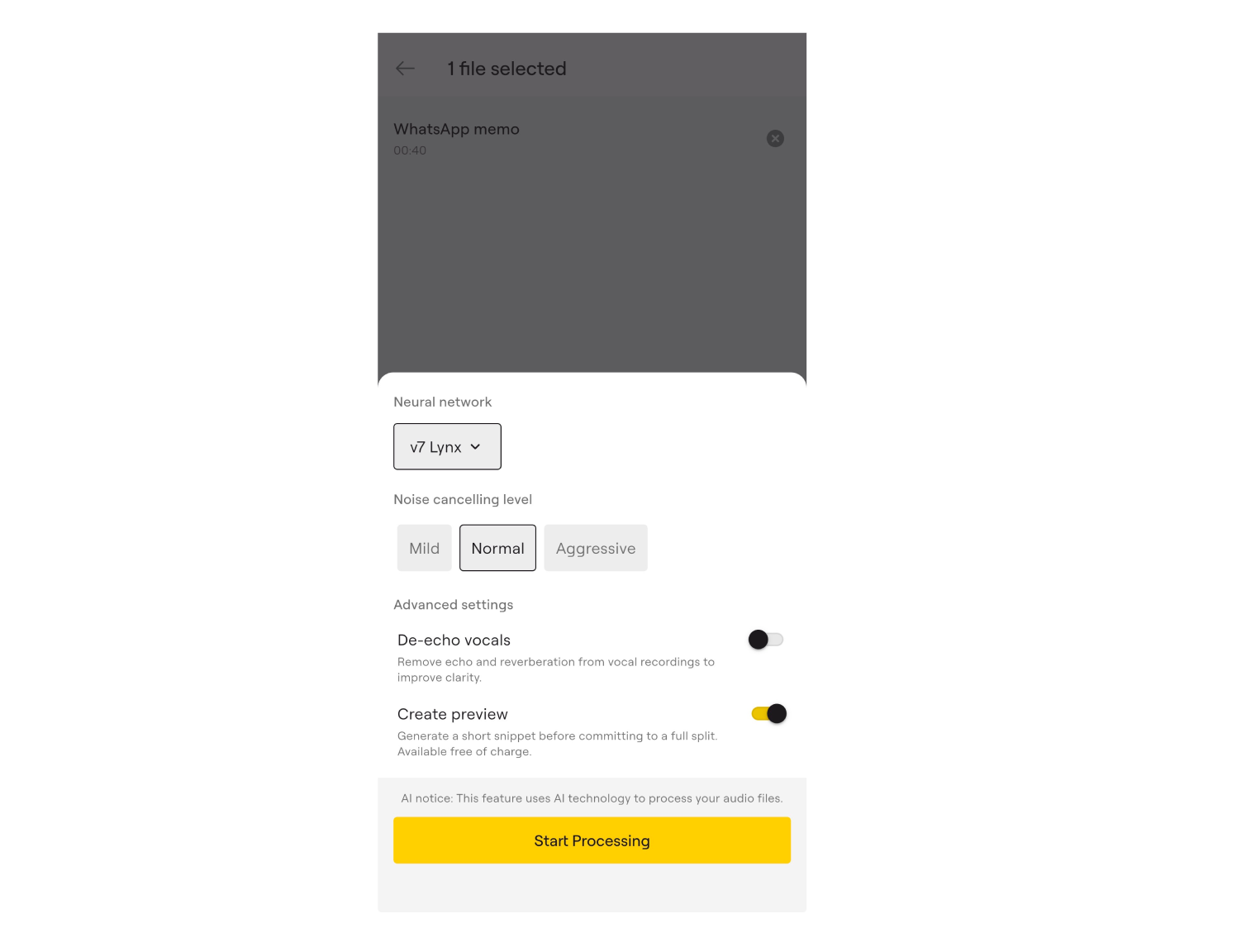
We recommend you leaving the Create preview toggle on since it lets you judge the result on a short fragment without spending your processing minutes, and if the voice sounds thin or the noise is still there, you can go back and adjust the settings before committing to the full file.
Step 3: Listen to the Preview in the Built-In Player
Once the preview is ready, tap the file in your processing history. The player splits the recording into two tracks, Voice and Noise, and gives you full control over each:
- Tap M to mute a track, or S to solo it and hear it on its own.
- Drag the volume slider anywhere between 0% and 100% for each track.
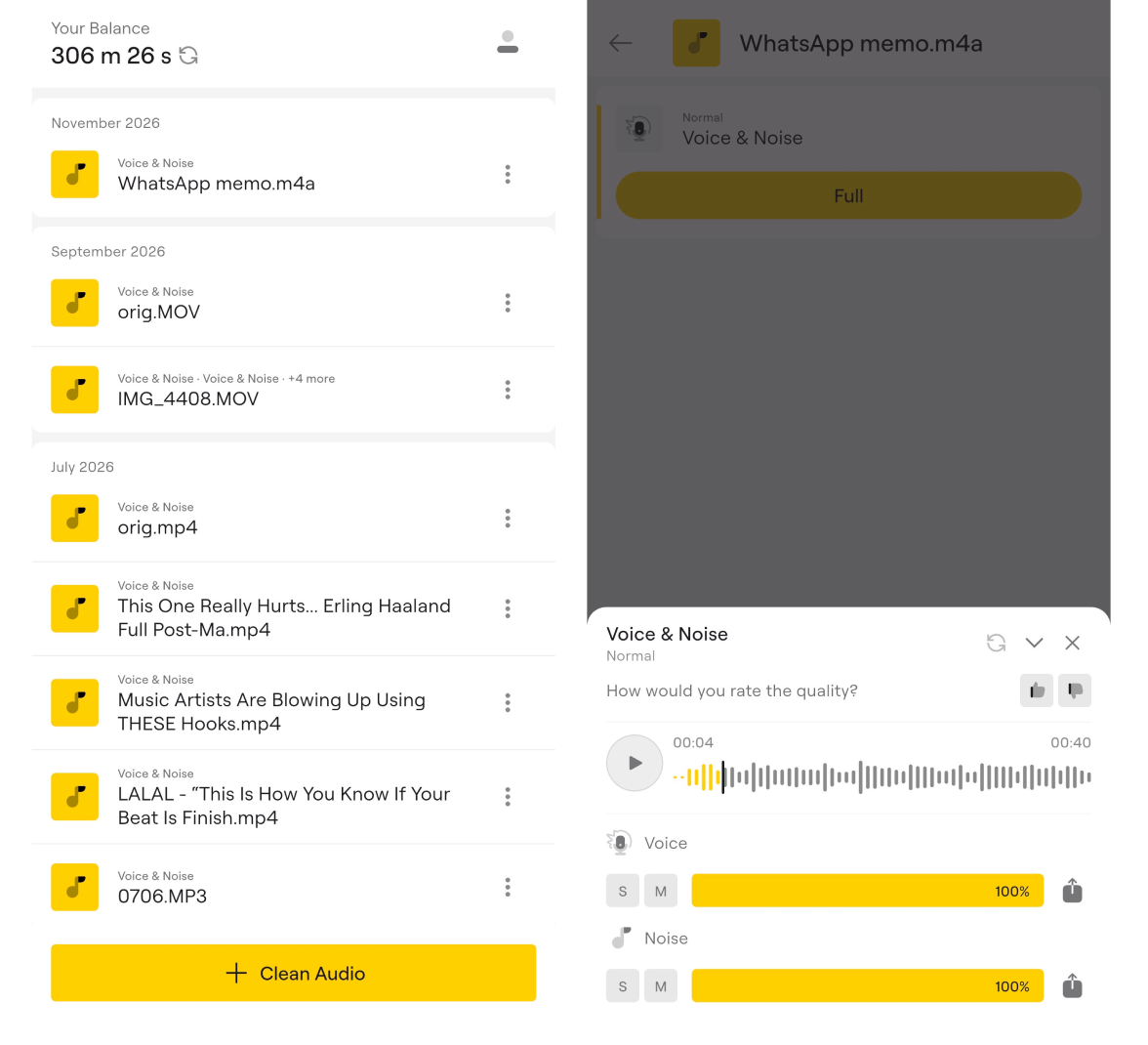
Soloing the Noise track is the fastest sanity check of all. If you hear fragments of words in there, dial the level down a notch.
Step 4: Process the Full Voice Note and Share It
If you’re happy with the preview, tap Full and the app processes the entire recording. When it’s done, the same two-track player opens again. Use the standard Share button to export either track separately, and from there the cleaned voice can go wherever iOS or Android lets you send a file: save it to Files, AirDrop it to your Mac, attach it to an email, drop it into Messages, or forward it right back into the WhatsApp chat it came from.
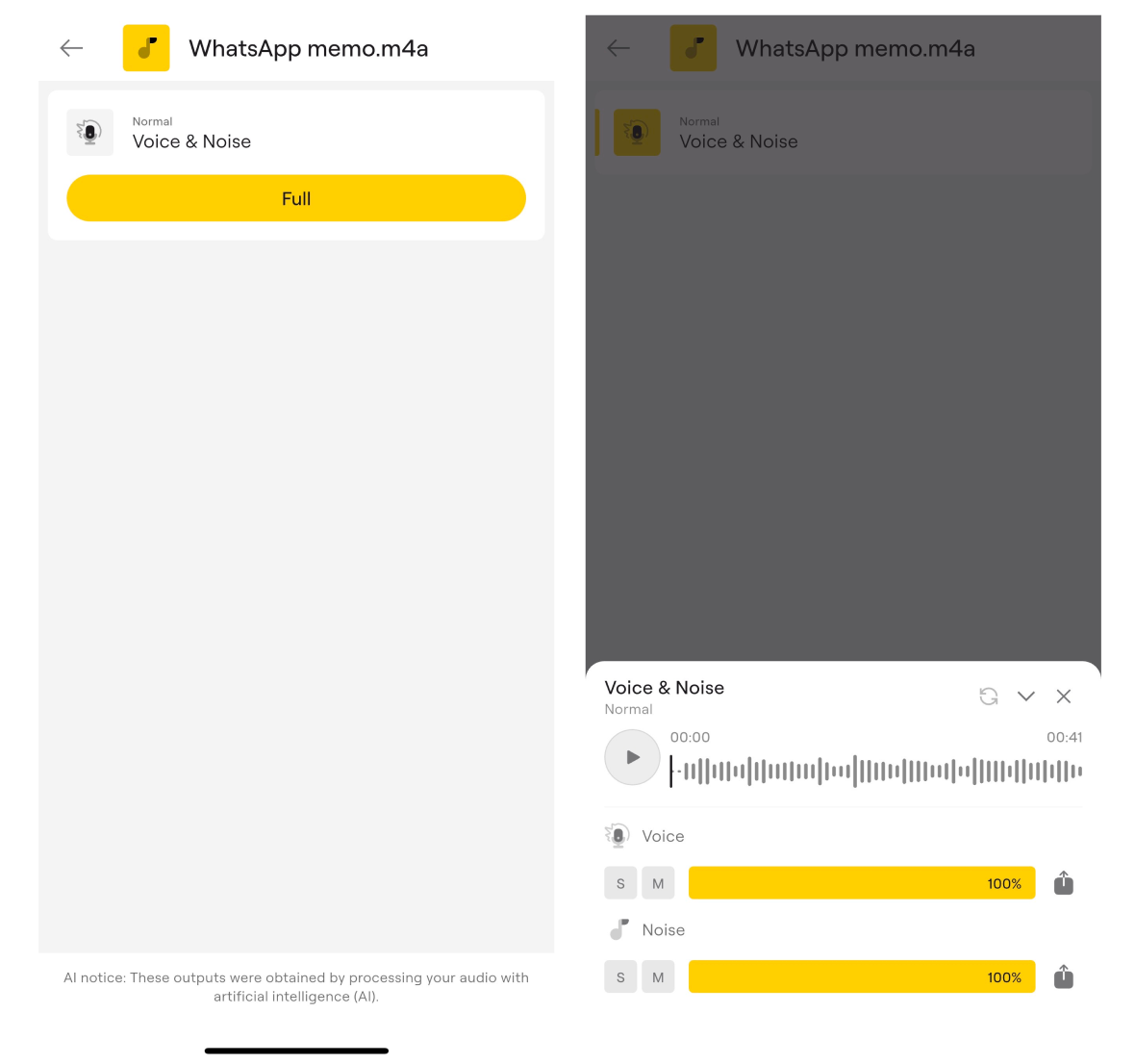
LALAL.AI can also process your noisy recording with Voice Cleaner online, with the desktop app for Windows, macOS, and Ubuntu as well as the Speech Cleaner VST plugin for DaVinci Resolve, Ableton Live, REAPER, and VST3-enabled versions of Audacity.
Method 2: Adobe Podcast Enhance Speech in Your Browser
If you’d rather work in a browser, you can use the LALAL.AI web version or Adobe’s free Enhance Speech tool. It filters out noise and evens out the volume in one click, with no settings to fiddle with on the free plan.
There’s one catch, though. Adobe doesn’t list .opus among its supported formats, so a WhatsApp voice note usually needs converting to MP3 or WAV before upload (any free audio converter will do). After that:
- Sign in at podcast.adobe.com with a free Adobe account and open Enhance Speech.
- Drop in the converted file and wait for processing to finish.
- Compare the result with the original using the on/off toggle, then download it.
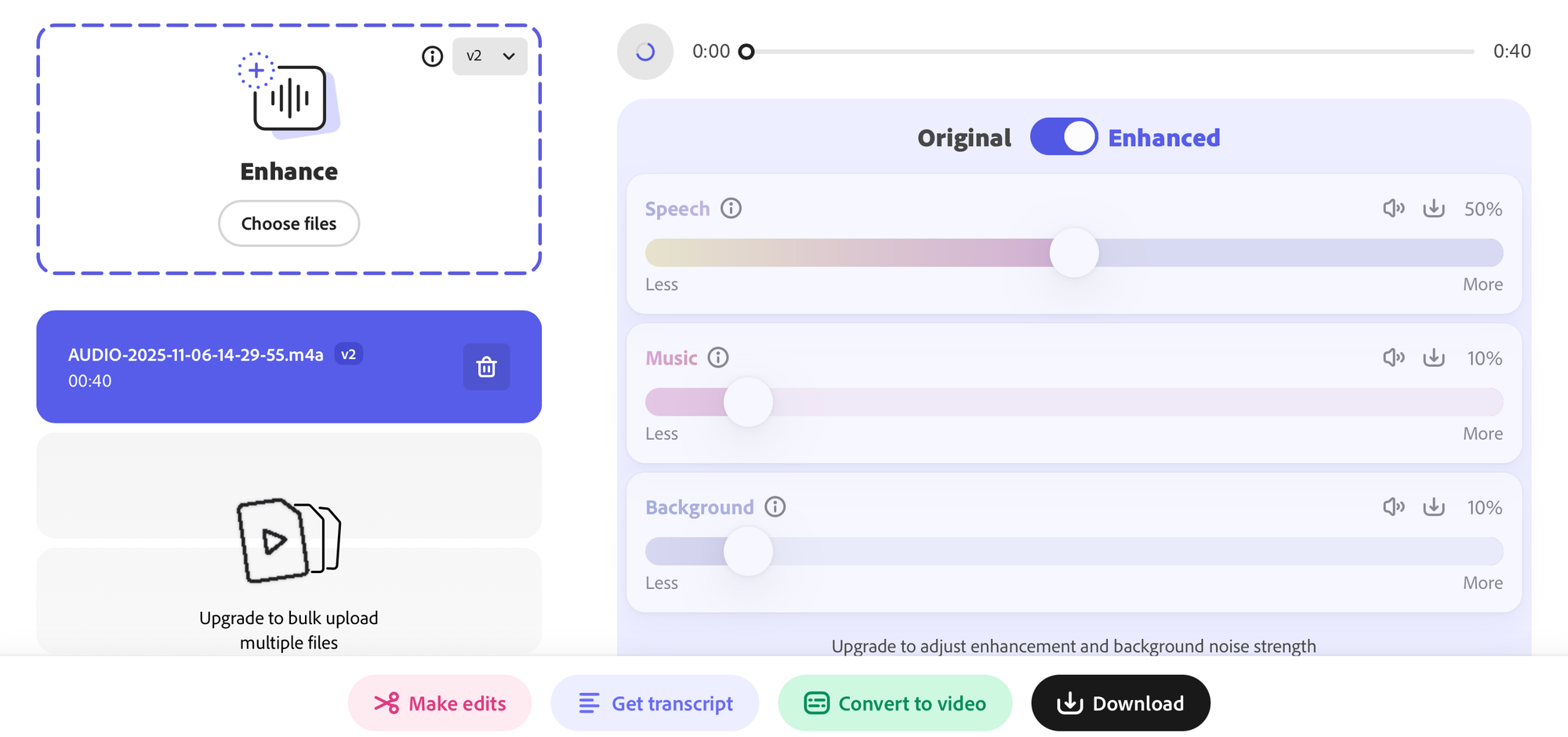
The free plan covers files up to 30 minutes and an hour of enhancement per day, which is far more than any voice note needs. Keep in mind that Enhance Speech works on the whole recording at a fixed strength (adjusting it is a Premium feature), so on very noisy clips the voice can come out slightly processed.
Method 3: Audacity’s Noise Reduction on Your Computer
Audacity is free and open-source, so it has long been the default desktop answer to noisy recordings for years. Its Noise Reduction effect is best at steady background sounds such as fan hum or hiss, and it struggles with unpredictable noise like voices or music behind the speaker.
To get the voice note onto your computer, find the message in WhatsApp Web or the desktop app and download it from there. Then:
- Open the file in Audacity (recent versions import .opus natively).
- Highlight a short stretch, ideally half a second or longer, where only the background noise can be heard.
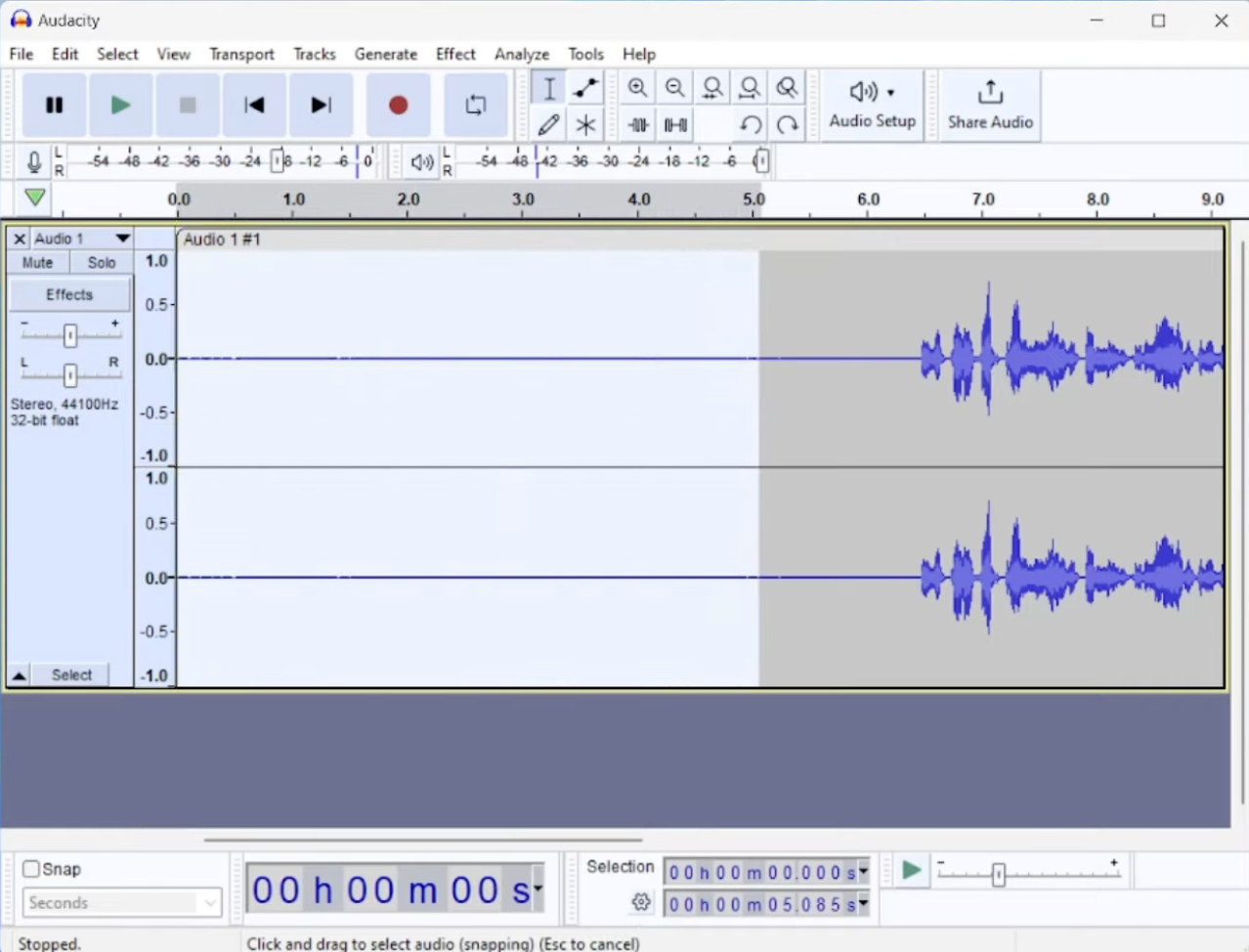
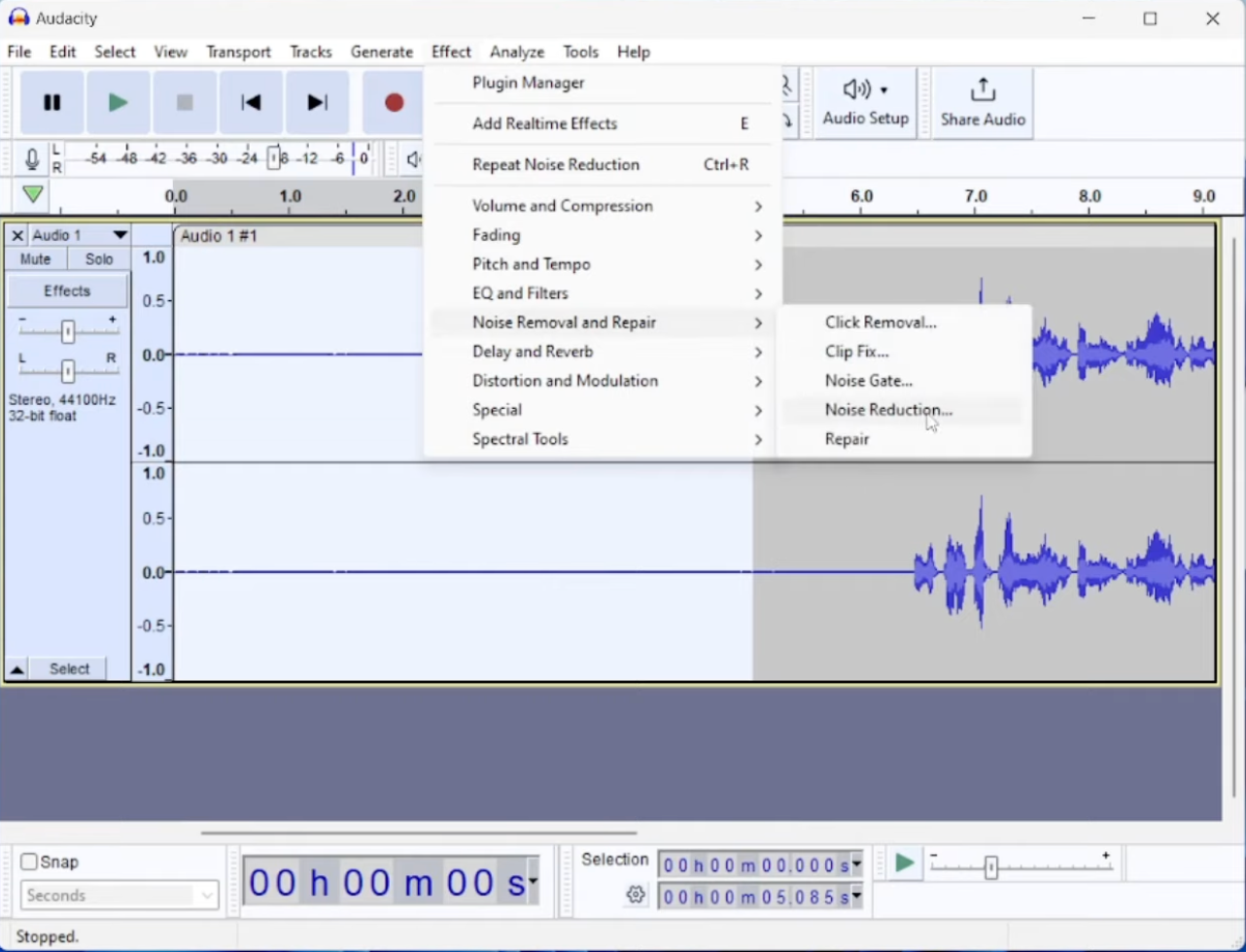
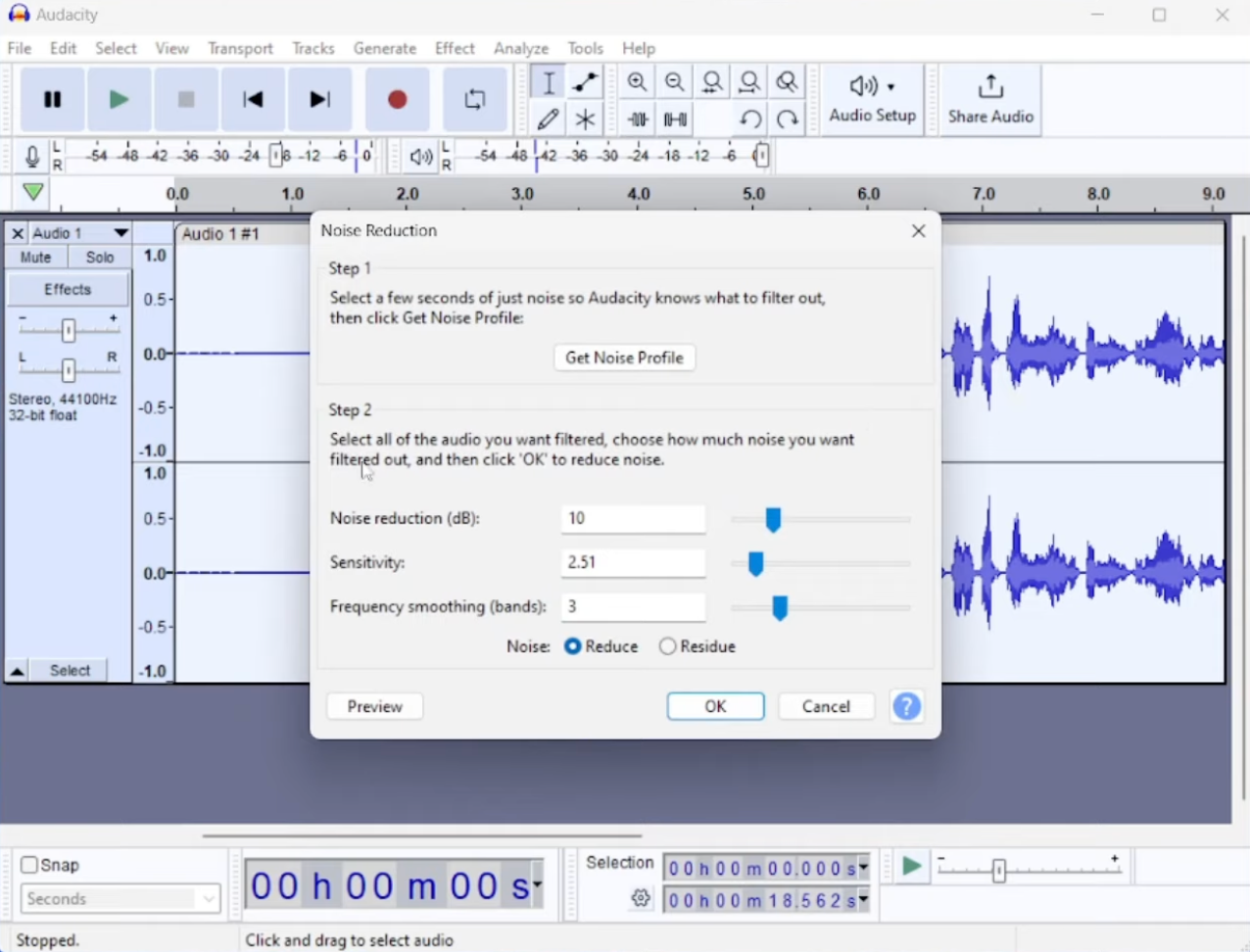
- Go to Effect -> Noise Removal and Repair -> Noise Reduction and click Get Noise Profile.
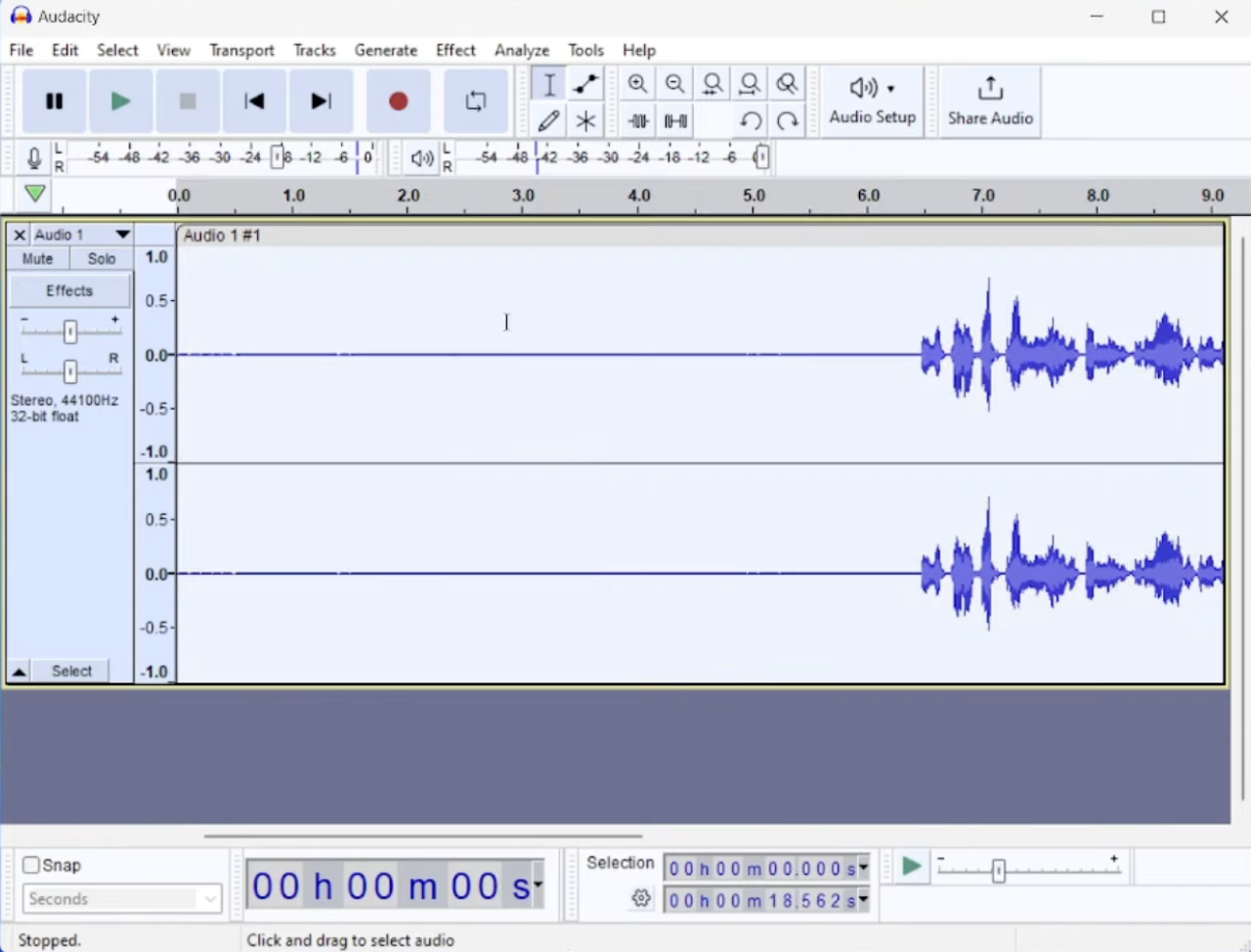
- Select the entire recording, reopen Noise Reduction, and click OK.
- Export the result via File -> Export Audio.
The method relies on finding a speech-free gap, which short voice notes don’t always have. If you push the reduction too far, you’ll hear a watery, metallic tone. Audacity’s own manual admits that some distortion is the normal price of noise reduction.
How to Record Cleaner Voice Notes in the First Place
No tool can rescue a word that was never captured, so a little care before you hit the mic button pays off later:
- Find the quietest spot within reach. Stepping away from a busy road or into a doorway beats any amount of post-processing.
- Keep the phone close to your mouth. The nearer you are to the microphone, the louder your voice is compared with everything else.
- Turn your back to the wind. Your body works as a windshield, and cupping a hand around the bottom of the phone helps further.
- Lock the recording. Slide the mic icon upward in WhatsApp so you don’t have to keep a finger pressed on the screen, which also cuts down on handling noise.
FAQ
Does WhatsApp have built-in noise cancellation for voice messages?
Not for recorded voice notes. The noise cancellation Meta has been testing and rolling out applies to live voice and video calls, and even there it only cleans up the audio you send, not what you receive.
Can I remove noise from a voice message someone else sent me?
Yes. A received voice note can be exported exactly like your own, so any method above will work on it.
Will noise removal make my voice sound robotic?
It shouldn’t, provided the settings match the recording. With the LALAL.AI app, start on Mild or Normal and listen to the Voice track in the preview; switch to Aggressive only when the noise really calls for it.
Is the LALAL.AI app free?
The app is free to download, and previews don’t cost anything. Processing the full file uses minutes from your LALAL.AI plan.
Can I remove echo from a WhatsApp voice memo?
Yes, the LALAL.AI app for both iOS and Android allows you to get rid of echo and reverb from any WhatsApp voice note. All you have to do is to select the de-echo toggle in the Advanced settings after uploading the file.
Follow LALAL.AI on Instagram, Facebook, Twitter, TikTok, Reddit, LinkedIn, and YouTube to keep up with all our updates and special offers.