How to Reduce Background Noise in iPhone Videos & Audio Recordings
Learn how to get rid of background noise, using LALAL.AI Voice Cleaner in Safari, LALAL.AI iOS app, Apple’s native Audio Mix, and more.

You nailed the shot, then hit play and heard the air conditioner humming louder than the person on camera? The good news is that an iPhone can fix a lot of that on its own, and what it can’t fix, an AI noise remover can. Let’s take a look at how to reduce background noise on iPhone video and audio recordings as of iOS 27, plus how to capture cleaner sound in the first place.
Why Your iPhone Picks Up So Much Background Noise
iPhone microphones are built to capture everything around them, not just the voice, which is great for a concert clip and a headache for a talking-head video. A phone held at arm’s length also sits far from the speaker’s mouth, so the voice reaches the mic at roughly the same level as street traffic or room echo.
Noise usually falls into two camps:
- Steady noise: hum, hiss, HVAC, fridge buzz, and road rumble. It’s constant, so software can learn its profile and pull it out cleanly.
- Unpredictable noise: chatter, clattering dishes, barking dogs, and passing sirens. It overlaps with speech, which makes it harder to remove without an AI model trained to tell voices apart from everything else.
Knowing which kind you’re dealing with helps you pick the right fix below.
Use LALAL.AI Voice Cleaner for Any Video or Audio File
Apple’s tools only work on recordings that meet their conditions (we’ll talk about them below). LALAL.AI Voice Cleaner has no such strings attached as it processes clips from older iPhones, downloaded videos, screen recordings, and footage from other cameras alike. It strips out background noise, background music, mic rumble, and vocal plosives while keeping the voice intact, and it handles both speech and singing.
That last point matters for playback problems Audio Mix can’t touch. If a song was blasting from a speaker while you filmed, Voice Cleaner can pull the music out from under the voice instead of just turning everything down.
It runs right in Safari as well as the standalone LALAL.AI app for iOS called Noise Remover. Voice Cleaner accepts MOV and MP4 video, which covers everything the iPhone Camera records, plus M4A, WAV, MP3, and other common audio formats, so Voice Memos files work too.
How to Clean an iPhone Video in Safari with LALAL.AI Voice Cleaner
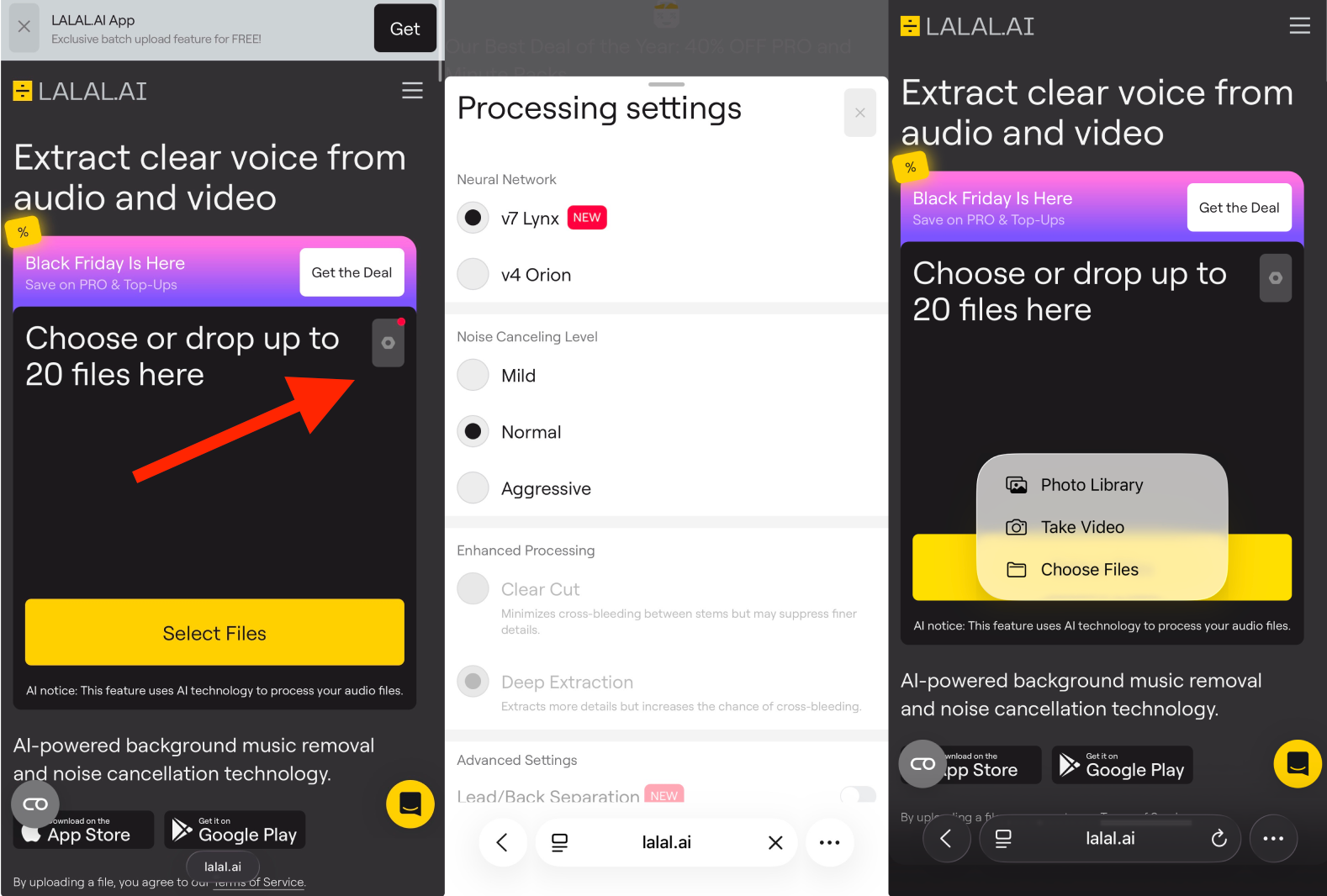
- Open lalal.ai/voice-cleaner in Safari and sign in.
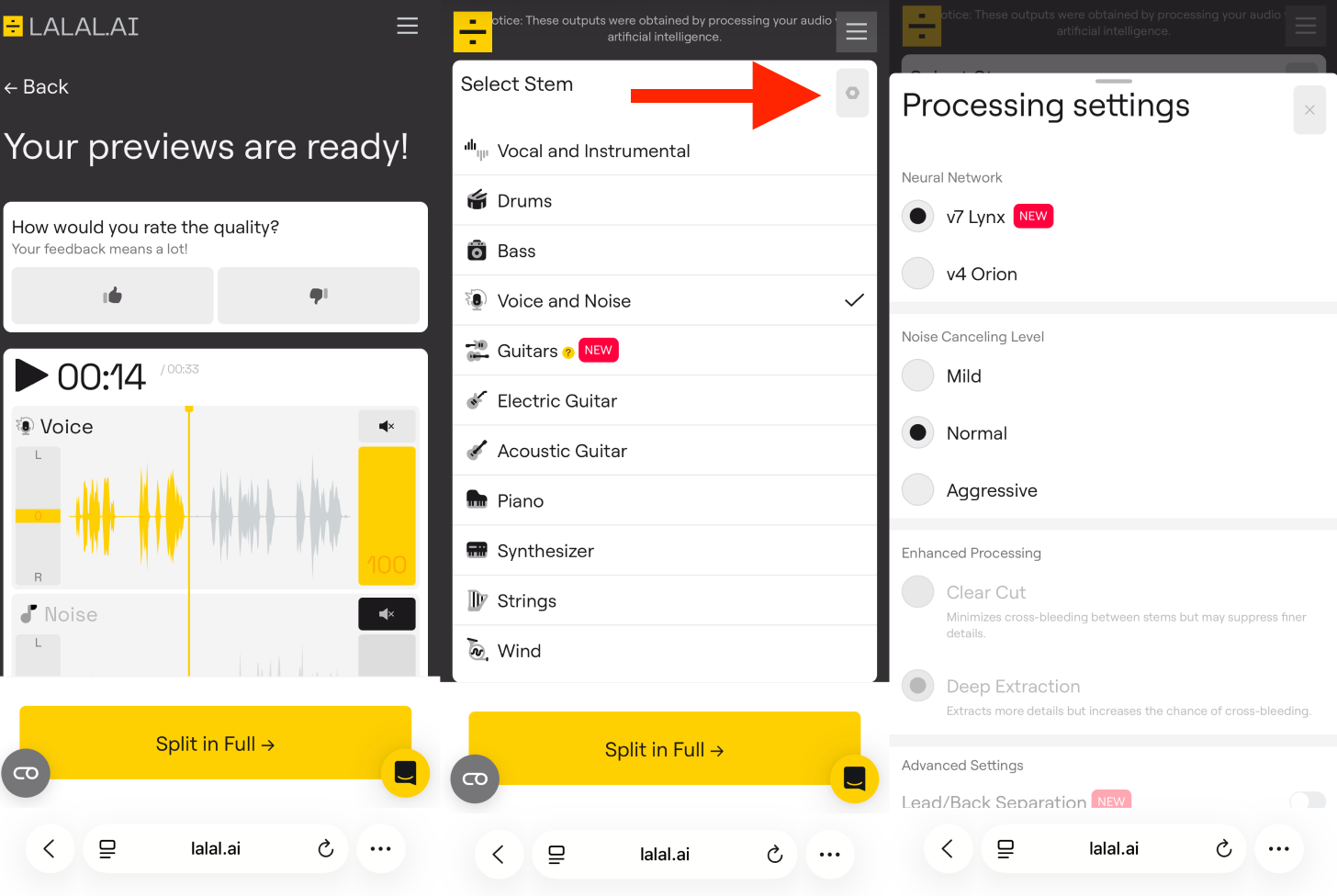
- Tap the gear icon and set the Noise Canceling Level (Normal is set by default), which controls how much a quiet voice gets boosted after cleanup, from Mild up to Aggressive. Turn on De-Echo if the room sounds hollow.
- Upload the video from Photo Library, Files, or take the video by clicking Select Files.
- Listen to the free preview and change the settings until the voice sounds as you want it to.
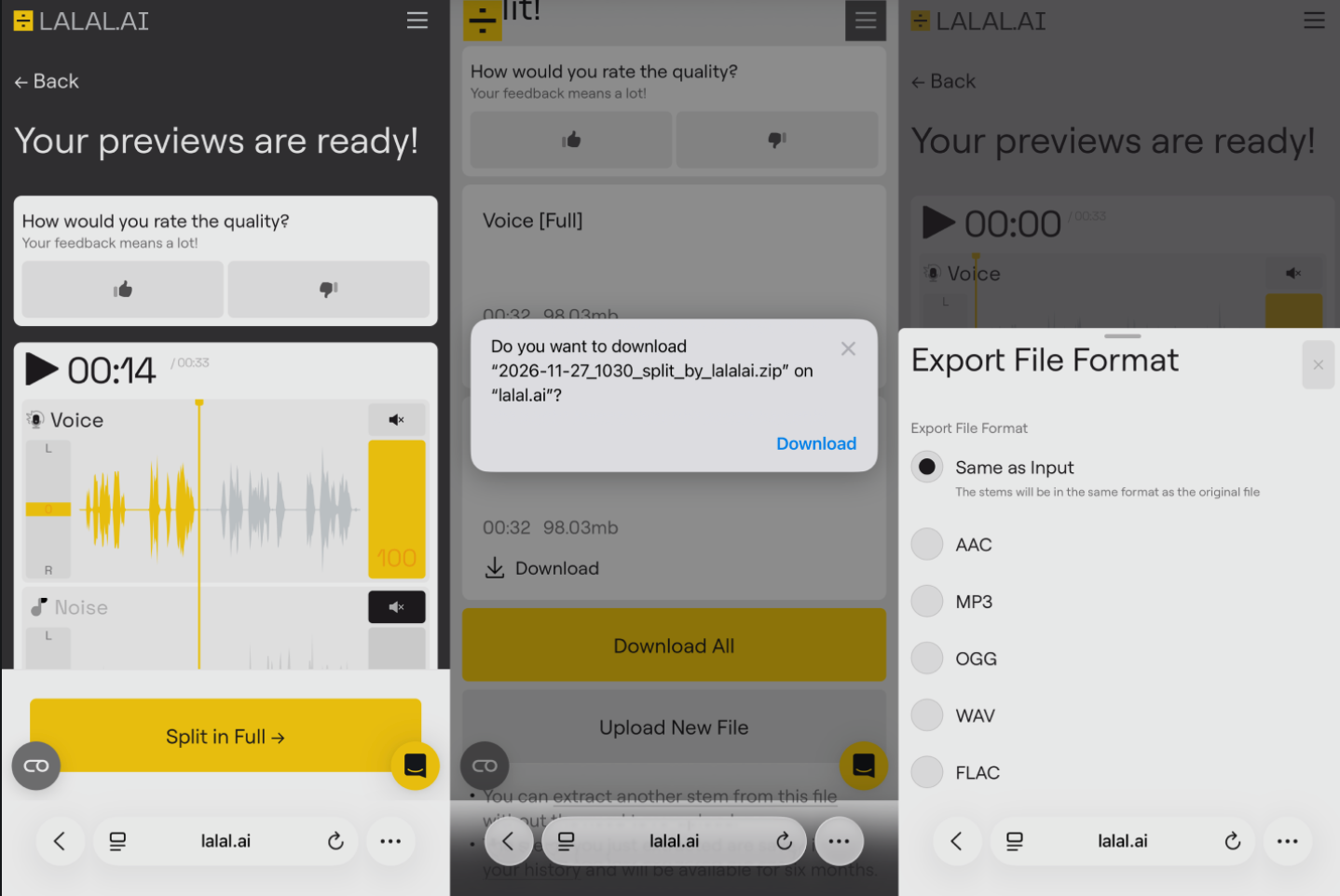
- Click Split in Full to process the entire file, then save the download to Photo Library or Files.
How to Clean an iPhone Video in the Noise Remover iOS App
- Download Noise Remover from the App Store and log in (or create an account).
- Tap +Clean Audio and select the video from your Photo Library, Files, or iTunes Music.
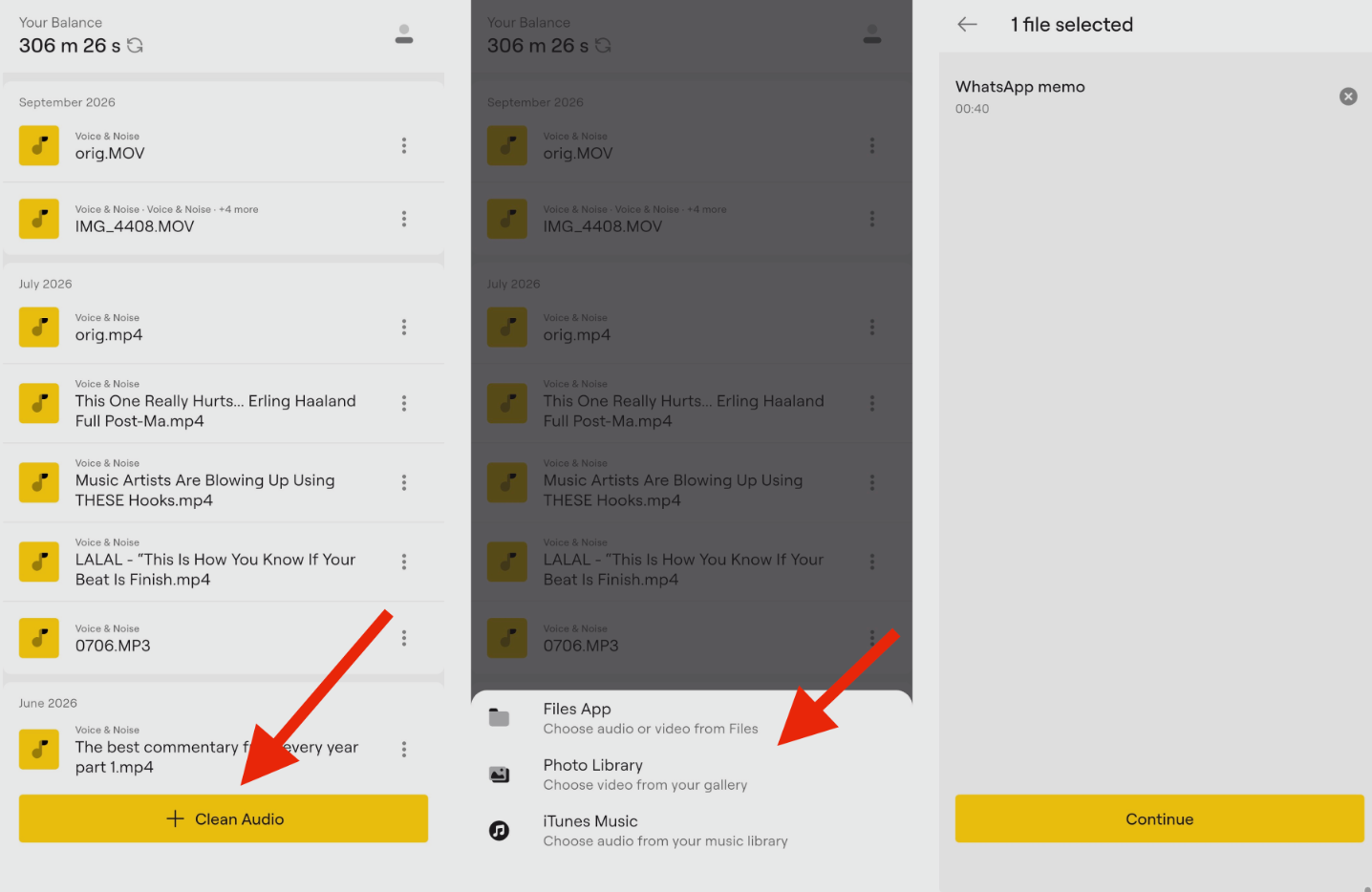
- Tap Continue to open the processing settings. Keep the Lynx neural network, which is selected by default.
- Set the Noise cancelling level anywhere from Mild up to Aggressive. The higher the level, the more a quiet voice gets boosted after the noise is gone.
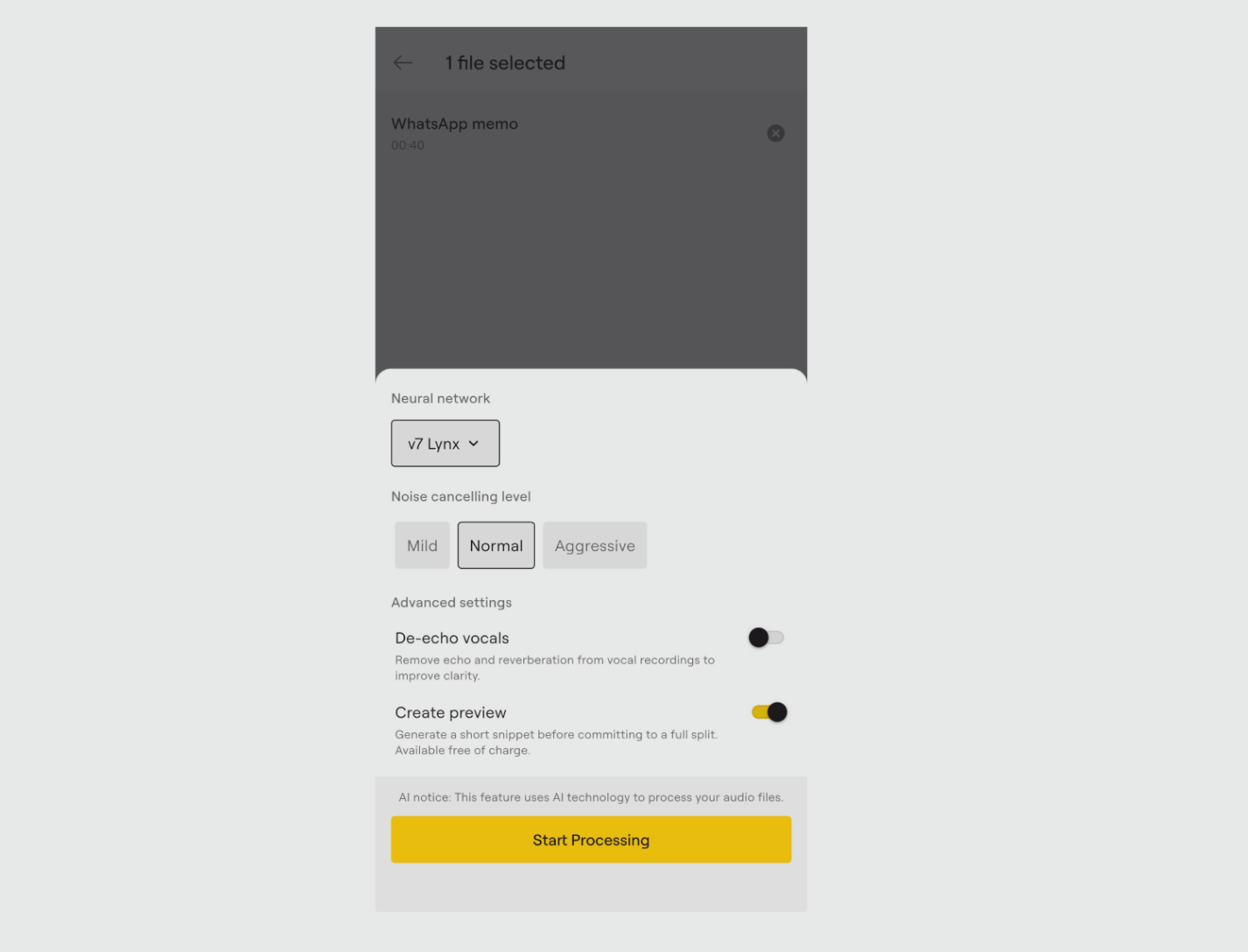
- In the Advanced settings, keep Create preview on. If the room sounds hollow, enable De-echo vocals there too.
- Tap Start Processing. The file is processed on LALAL.AI’s servers, so stay connected to the internet.
- Tap the file in your processing history to play the preview. The player splits it into Voice and Noise tracks: tap M to mute a track or S to solo it. Solo the Noise track to check for leftover speech, and if you hear words, lower the noise cancelling level.
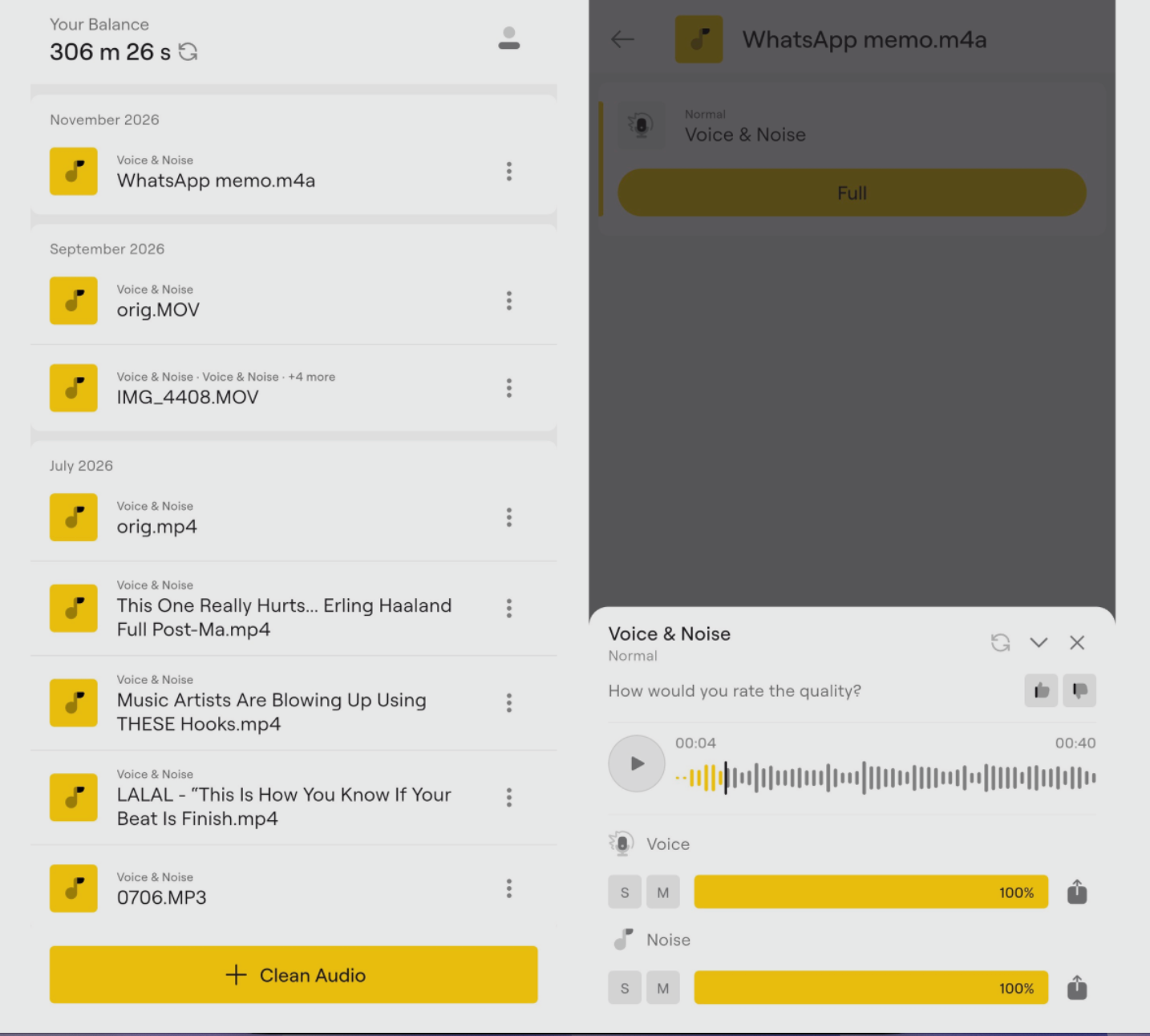
- Once the preview sounds right, tap Full to process the whole recording, then export the Voice track with the Share button.
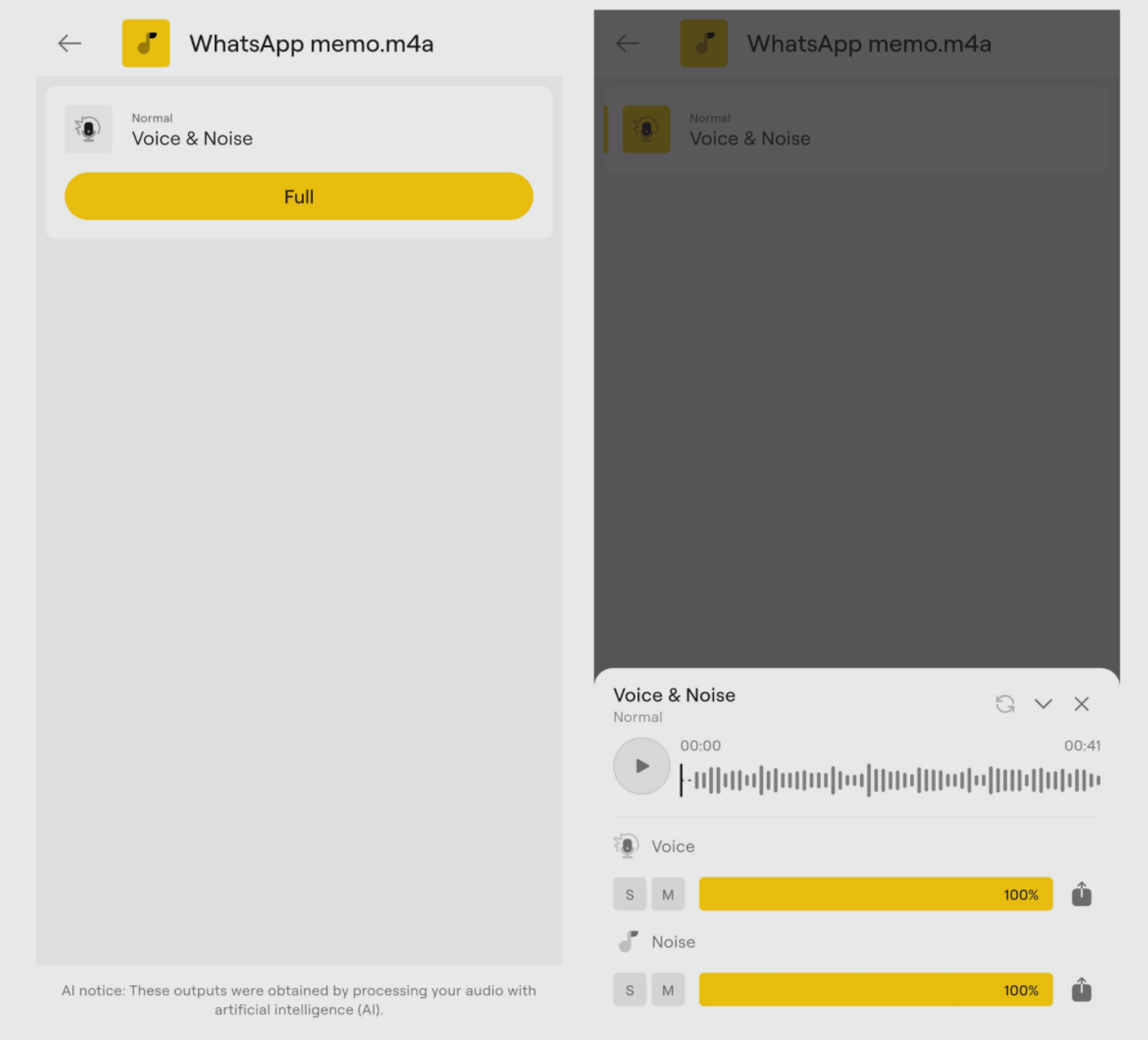
Previews are free, while full processing uses minutes from your LALAL.AI balance if you already have an account and an active subscription. If you don’t, you can select one of the packs with minutes right inside the app upon downloading the track.
Clean Noisy iPhone Videos in a Few Taps
Get Noise Remover by LALAL.AI and preview your cleaned audio for free. You pay only for the minutes you process, with no subscription required.
Download on the App StoreHow to Reduce Background Noise in Video on iPhone with Audio Mix
Audio Mix is the fastest built-in way to reduce background noise on iPhone video. It lives in the Photos app and uses machine learning to separate speech from the surrounding sound, then lets you rebalance the two after the fact.
What you need is a video recorded with Spatial Audio on iPhone 16 or later (iPhone Air included), according to Apple Support. Spatial Audio is on by default on these phones; you can check it in Settings -> Camera -> Record Sound.
- Open the Photos app and tap the video.
- Tap the Edit button (three sliders).
- Tap Audio Mix.
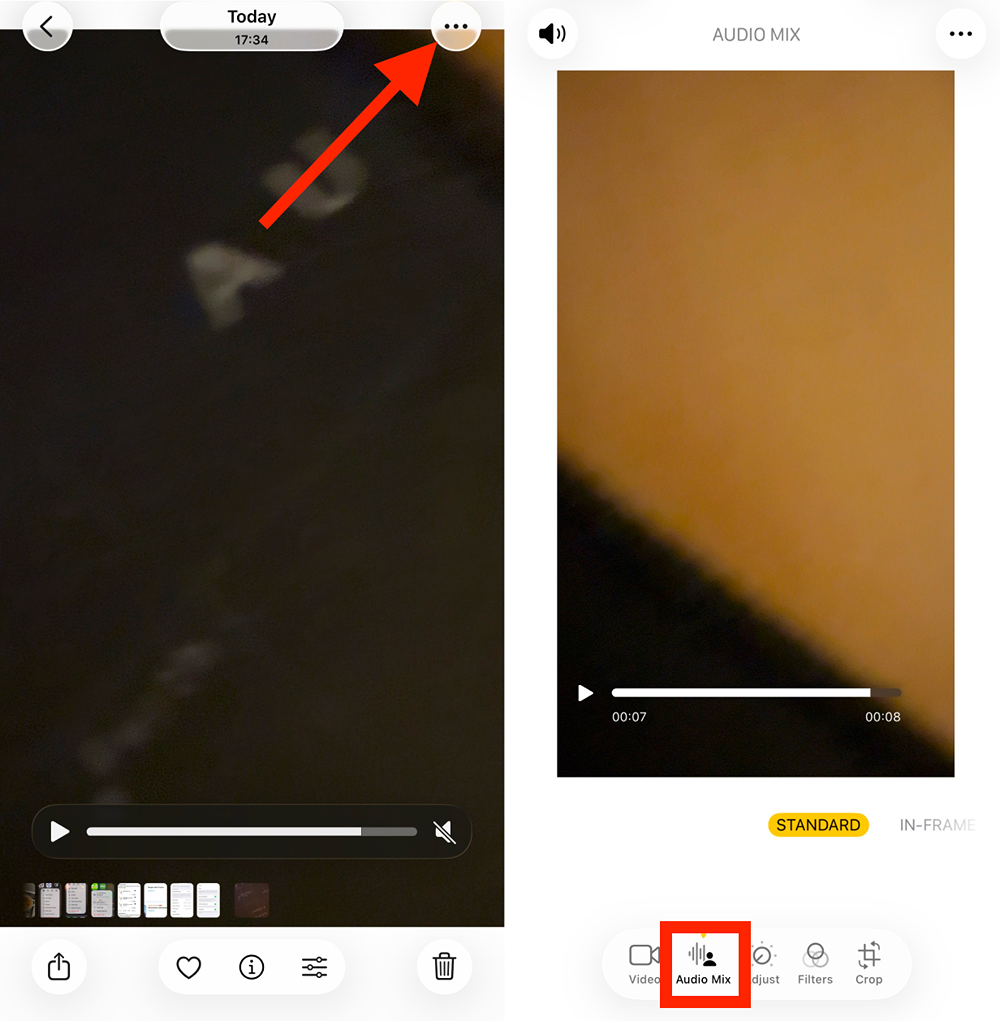
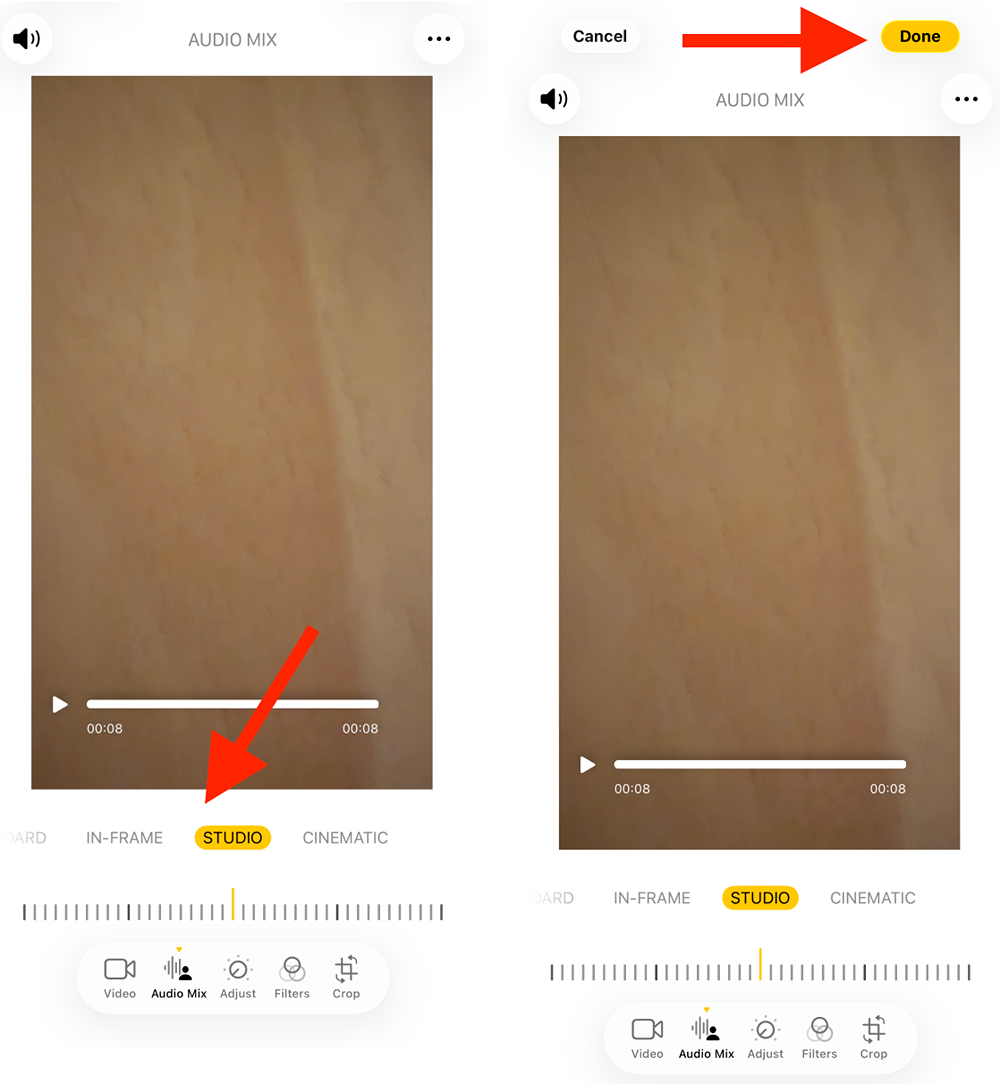
- Pick a mode and drag the intensity slider below the video.
- Tap Done.
| Mode | What it does | Use it when |
|---|---|---|
| Standard | Plays the original audio | You want to compare before and after |
| In-Frame | Lowers sounds and voices coming from outside the frame | Someone off camera keeps talking |
| Studio | Reduces background sounds and reverb | You need a clean voice for a vlog or an interview |
| Cinematic | Puts voices on a front-facing track and keeps ambience in surround | You want clear speech but still want the scene to feel alive |
For most noisy clips, Studio is the mode to start with. Push the slider gradually: at full strength, voices can start to sound thin. Since Photos edits are non-destructive, you can always revert to the original.
With iOS 26, Apple opened Audio Mix to third-party developers too, so some video editors now offer the same modes inside their own apps. On iPhone 18 Pro, Audio Mix can also isolate music alongside voices.
🔴 Limits worth knowing: Audio Mix won’t appear for videos shot on iPhone 15 or older or recorded without Spatial Audio. It also skips downloaded clips and footage from other cameras. For those, jump to the LALAL.AI method.
How to Reduce Background Noise in Voice Memos
For audio-only recordings, Voice Memos gives you two cleanup switches, and which one applies depends on how the memo was recorded. Both sit in the playback options.
🟡 Enhance Recording works on Mono and Stereo recordings. It’s a one-tap toggle that reduces background noise and echo.
🟡 Studio Voice works on Spatial Audio recordings only. If your memos are recorded in Spatial Audio, it’s the only cleanup option you’ll see in Options. It comes with a strength slider, and it recognizes music instead of treating it as noise, which is handy for song ideas recorded on the fly.
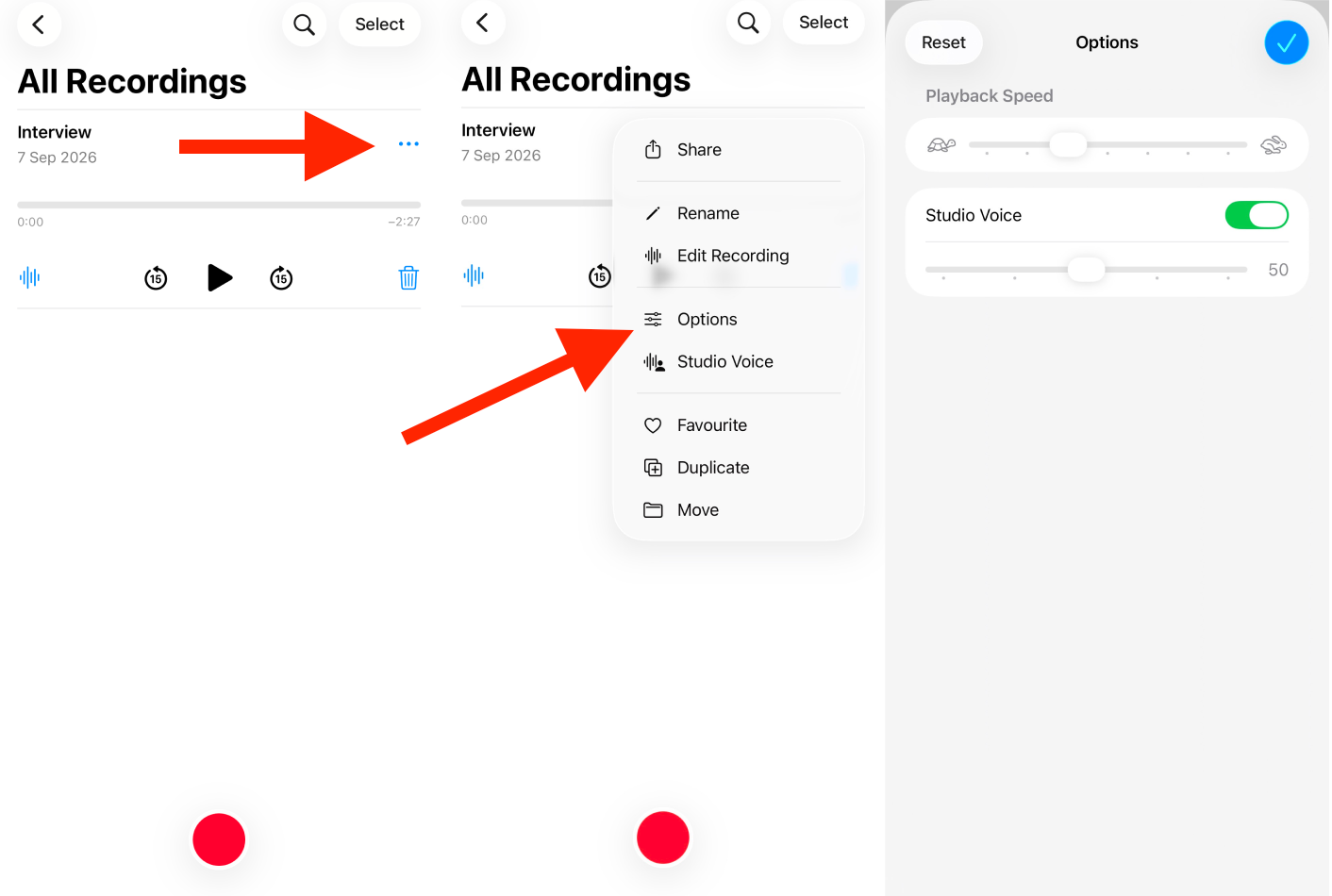
- Open Voice Memos (it’s in the Utilities folder).
- Tap the recording, then tap the More button (three dots).
- Tap Options.
- Turn on Studio Voice or Enhance Recording (if the audio is mono or stereo) and drag the slider to set the strength.
- Tap the blue checkmark icon ✓ and play the memo to check the result.
Keep in mind that Apple describes Enhance Recording as a playback setting since it changes how the memo sounds, not the file itself. If you need a cleaned file for a podcast or a video edit, process the recording with a dedicated tool instead.
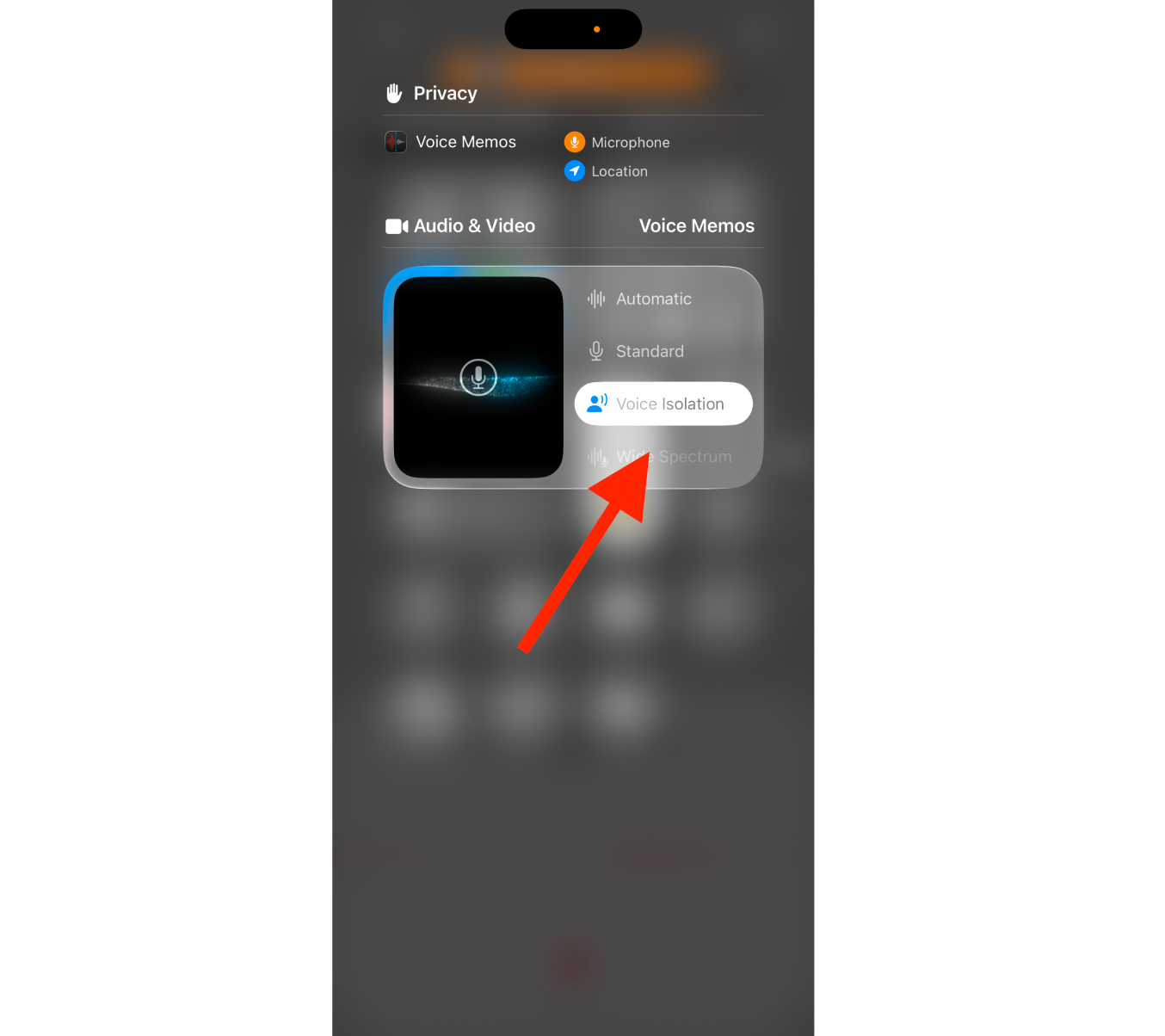
Good to know: On iOS 26 and later, Voice Memos offers Voice Isolation, a mic mode that filters out background noise as you record. To turn it on, first go to Settings -> Apps -> Voice Memos -> Recording Mode and choose Mono or Stereo: with Spatial Audio, the option stays greyed out. Then open Voice Memos, pull down Control Center, tap Voice Memos at the top, and pick Voice Isolation to filter background sound as you record. Keep in mind that memos recorded this way can be cleaned later with Enhance Recording, but not with Studio Voice.
How to Reduce Background Noise in iMovie on iPhone
iMovie on iPhone doesn’t have a native noise reduction tool. Apple’s iMovie for iPhone guide covers volume, fades, speed changes, and detaching audio, but nothing that filters noise out. The “Reduce background noise” slider many tutorials mention exists only in iMovie for Mac, under the Noise Reduction and Equalizer button.
That doesn’t mean you’re stuck. Use one of these workarounds:
- Clean the clip before you import it. Apply Audio Mix in Photos (if your iPhone supports it) or run the video through the LALAL.AI app for iOS, save the result to Photos or Files, then add it to your iMovie project. Play it back in iMovie to make sure the cleaner version came through.
- Detach the audio and tame the worst parts. Select the clip in the timeline, then tap Actions -> Detach. The audio becomes a separate clip you can split into pieces and mute wherever the noise gets unbearable.
- Replace noisy narration with a voiceover. Mute the original sound and record a fresh voiceover in iMovie in a quiet room.
- Mask a faint hum with music. Add one of iMovie’s built-in soundtracks at a low volume. It won’t remove noise, but it makes a light, steady hiss far less noticeable.
If you also work on an iPad, Final Cut Pro for iPad includes Voice Isolation and Noise Removal controls, according to Apple’s Final Cut Pro for iPad guide. On iPhone itself, cleaning the file first remains the most reliable route.
Which Method Should You Use?
Pick the tool based on how the clip was recorded and whether you need a cleaned file you can share.
| Method | Works on | What it reduces | Result |
|---|---|---|---|
| Photos Audio Mix | Videos shot with Spatial Audio on iPhone 16 or later | Ambient noise and reverb; off-screen sound in In-Frame mode | Edited video you can share |
| Voice Memos Enhance Recording | Mono and Stereo memos | Background noise and echo | Playback setting |
| Voice Memos Studio Voice | Spatial Audio memos | Background noise, with music kept intact | Playback setting |
| iMovie on iPhone | Any clip in a project | No noise filter; volume and muting only | Edited project |
| LALAL.AI | Any audio or video file | Noise, background music, mic rumble, plosives, and echo | Downloadable clean file |
How to Record Video & Audio on iPhone With Less Background Noise
The cleanest fix is the one you never need. A few habits before you hit record will save you more trouble than any filter.
Check Your Camera Sound Settings
Go to Settings -> Camera -> Record Sound and review these options:
🟡 Spatial Audio (iPhone 16 or later): keep it on. It’s what makes Audio Mix available in Photos later.
🟡 Wind Noise Reduction is on by default with Spatial Audio. Leave it on outdoors, and switch it off only if you actually want the sound of wind.
🟡 Audio Zoom (iOS 26.4 or later) focuses recorded sound on the subject when you zoom in, which trims surrounding noise. It doesn’t work when audio is set to Mono, and you can turn it off if you’d rather keep the full atmosphere of a crowd.
🟡 Allow Audio Playback: keep it off when you need a clean voice. Otherwise, music or a podcast playing on your iPhone can keep going and end up in the recording.
Bring the Mic Closer to the Voice
Distance is the number one reason voices drown in noise. Every step back lets more of the room into the recording.
⚪️ Use AirPods as a microphone. Have the speaker wear supported AirPods, start a video in the Camera app, open Control Center, and choose the AirPods as the sound input under Camera Controls.
⚪️ Plug in an external mic. A lavalier or a compact shotgun mic connects through USB-C (or Lightning with an adapter) and sits much closer to the mouth than the built-in mics.
⚪️ Walk closer instead of zooming. Zoom brings the picture closer, but only physical distance brings the built-in mics closer to the voice.
Tame the Room
🟡 Switch off fans and air conditioners before you start. Steady noise is easy to ignore in person and impossible to miss on playback.
🟡 Record in a room with soft surfaces such as curtains or rugs. Bare walls bounce sound around and add echo.
🟡 Keep your fingers away from the mic openings at the bottom and top of the iPhone.
🟡 Do a 10-second test clip with headphones on. If you hear a problem now, you can fix it before it lands in every take.
FAQ
Why don’t I see Audio Mix in the Photos app?
Audio Mix only appears for videos recorded with Spatial Audio on iPhone 16 or later, including iPhone Air. Clips from older iPhones won’t show the option, and neither will downloaded videos.
Can I remove background noise from a video I didn’t record myself?
Yes. Both LALAL.AI web solution and the iOS app work on any MOV or MP4 file regardless of the device it came from, and it can remove background music as well as noise.
Does Enhance Recording change my Voice Memos file?
No. Apple describes Enhance Recording as a playback setting that changes how the memo sounds, not the recording itself. To get a cleaned file you can export, process the memo with a tool like LALAL.AI.
How can I record video on iPhone with less background noise?
Keep Spatial Audio and Wind Noise Reduction on in Settings -> Camera -> Record Sound, and get the mic as close to the speaker as possible. AirPods or a USB-C lavalier mic will capture a much cleaner voice than the built-in mics at arm’s length.
Follow LALAL.AI on Instagram, Facebook, Twitter, TikTok, Reddit, LinkedIn, and YouTube to keep up with all our updates and special offers.